
Home · Blog · YCLIENTS booking via chatbot: four flows for salons
YCLIENTS booking via chatbot: four flows for salons
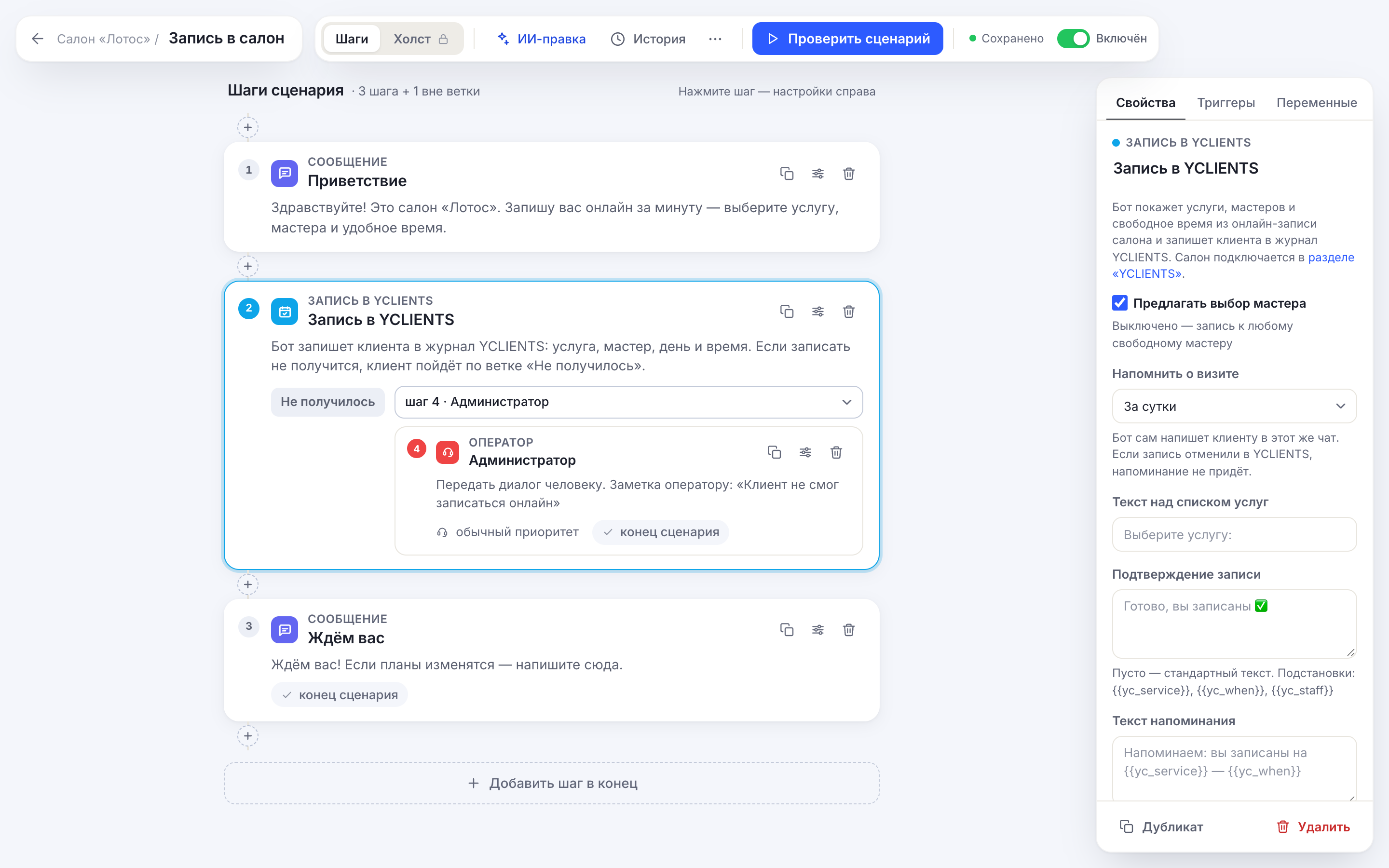
Salon clients increasingly message you instead of opening the booking form on your website. The “YCLIENTS booking” block in CHBT answers them right in the chat: it shows services, staff members and available times from your online booking and adds the appointment to the YCLIENTS calendar — no administrator needed. Below are four flows built from ready-made blocks, plus what to know before launch.
What the block does and what you need to start
The bot takes the client through the same path as the YCLIENTS online booking form: service → staff member (or “Any staff member”) → day → time → phone → “Review your booking” → “✅ Book”. The data is live: the bot gets available times from YCLIENTS at the moment of selection, and if a slot has just been taken, it offers another one. After booking, the bot can send a visit reminder in the same chat, and it won't send one if the appointment was deleted in YCLIENTS.
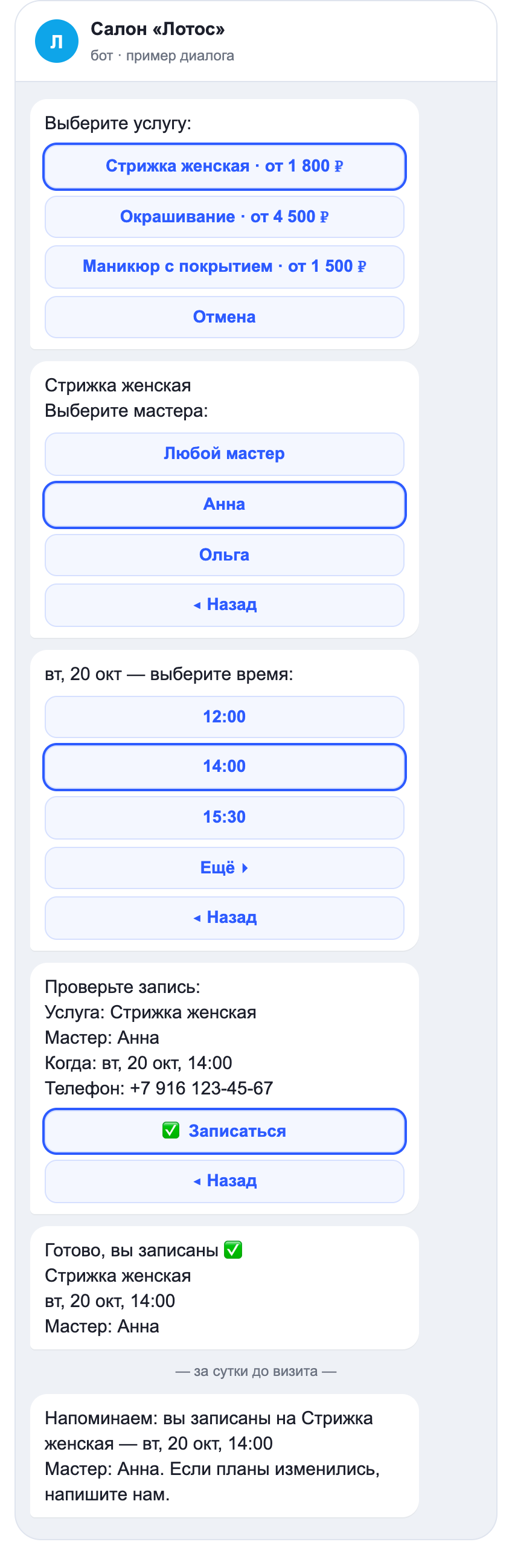
To start, you need: YCLIENTS online booking with services enabled for it, SMS phone verification turned off, and a partner token from a YCLIENTS developer account. Step-by-step setup is in the Help section.
Flow 1. Salon with several staff members: booking from the menu
The classic setup for a beauty salon: the client opens the bot and sees a menu.
- “Message” with a greeting and buttons “Book”, “Prices”, “Address and directions”.
- “Book” leads to a “YCLIENTS booking” step with “Offer staff choice” turned on: regular clients go to “their” staff member, new ones choose “Any staff member”.
- The “Booked” output → “Message”: address, directions, “if your plans change, write here”.
- The “Failed” output → “Operator” with the note “Client couldn't book online”: the administrator will see the conversation in “Conversations” and book it manually.
The “Failed” branch is a required part of the flow. The client ends up there if they tapped “Cancel”, if there are no available slots, or if YCLIENTS didn't respond. Without it, the person would be left without a reply.
Flow 2. Barber or solo specialist: booking in three taps
If there is only one staff member, or the client doesn't care who they see, choosing a staff member is an extra step. Turn off “Offer staff choice”: right after the service, the bot will show available days, and the appointment will go to any available staff member.
This works for a high-volume barbershop, a one-chair nail studio, or a specialist working from home. Tip: in “Text above the service list”, state how long each service takes — it makes it easier for the client to pick a slot.
Flow 3. Massage, cosmetologist, clinic: a reminder closer to the visit
For services that require preparation or that are easy to forget, a reminder one day ahead isn't always the best choice. The “Visit reminder” setting offers 2 and 3 hours, 12 hours, one day and two days.
In “Reminder text”, you can add what matters at your place: “Please arrive 10 minutes early, entrance from the courtyard”, “Don't apply cream on the day of the procedure”. The placeholders {{yc_service}}, {{yc_when}} and {{yc_staff}} insert the service, time and staff member. If the administrator deletes the appointment in YCLIENTS, the reminder won't be sent — the client won't get a message about a visit that no longer exists.
Flow 4. One bot for Telegram, MAX and your website
One booking flow serves all of the bot's channels. Connect Telegram, MAX, VK and website chat in “Channels”, and YCLIENTS booking will work the same way everywhere. Each messenger displays buttons differently (one per row in Telegram and MAX, two per row in VK), so the bot shows up to five options per message plus a “More ▸” button.
All appointments made by the bot are visible in the “YCLIENTS” section of the dashboard, with the service, visit time and a link to the conversation. Reminders are designed for messengers: by then, a website chat visitor may have left the page.
What the administrator sees
An appointment from the bot appears in the YCLIENTS calendar as a regular online booking: with the service, staff member, time, and the client's name and phone. In the appointment comment, the bot writes “Booked via CHBT chatbot” and the channel, so the administrator can tell it apart from a website booking.
Three records remain in the CHBT dashboard:
- “Conversations” — the full chat with the client: what they chose and at which step they changed their mind. If the client went to the “Failed” branch and there is an “Operator” step there, the conversation waits for the administrator.
- “Contacts” — the client card with the phone number. The phone the bot asked for during booking is saved to the contact, and next time the bot won't ask for it.
- The “YCLIENTS” section — a log of the bot's appointments with reminder status and a link to the conversation.
When the bot gets a client's phone for the first time, the bot owner receives an email about a new lead — the same as with “Data collection”.
Texts worth rewriting for your business
The default texts work, but they are short. Three places where your own text is noticeably better:
- “Text above the service list”. Instead of “Choose a service:” — “What would you like to book? Prices are starting prices; the staff member will confirm the exact cost on site”.
- “Booking confirmation”. For example: “You're booked for {{yc_service}} — {{yc_when}}. Address: 5 Lenina St, second floor. If you're running late, write here”.
- “Reminder text”. For example: “We look forward to seeing you for {{yc_service}} — {{yc_when}}. If your plans have changed, write to us and we'll reschedule”.
The {{yc_staff}} placeholder is the staff member's name if the client chose one; with “Any staff member” it is empty, so don't build a whole sentence around it.
Pre-launch checklist
- Online booking is enabled in YCLIENTS, the needed services are enabled for it, and staff members have available slots.
- SMS phone verification is turned off in online booking.
- The salon is connected in the “YCLIENTS” section of the dashboard, with no errors on the connection card.
- Both outputs of the “YCLIENTS booking” step are connected: “Booked” and “Failed”.
- “Check flow” goes through all steps with your services and times (no appointment is created in this mode).
- One booking made from a phone through the bot reached the YCLIENTS calendar — delete it after the check.
- The bot link is placed where clients message you: in the community header, on your website, in your message signature.
FAQ
Do I need my YCLIENTS password?
No. The bot works through the official YCLIENTS online booking API with a partner token from a developer account — it sees the same as a client in your booking form.
What happens if two clients choose the same time?
The appointment goes to whoever tapped “Book” first. The bot tells the second client that the time was just taken and shows available ones.
Can a client book without choosing a staff member?
Yes: the “Any staff member” button is always there, and turning off the “Offer staff choice” setting removes this step entirely.
Does this work on the Free plan?
Yes, the block is available on all plans. The Free plan has the general limit of 30 conversations per month.
What the bot doesn't do
- It doesn't reschedule or cancel appointments — the administrator still does that in YCLIENTS.
- It doesn't send reminders for appointments the administrator added to the calendar manually: the bot only knows its own.
- It books one service at a time and shows available days 30 days ahead.
- One bot — one location. For a chain, connect each location in its own bot.
- It doesn't work with online booking that has SMS phone verification enabled.
For salons without YCLIENTS, the “Appointment requests” template works: the client types a convenient time, and the administrator confirms.
Help: YCLIENTS bookingBot for beauty salonRegistering clients in MAXCHBT Updates