
Home · Help · How to connect YCLIENTS to a chatbot
How to connect YCLIENTS to a chatbot
The “YCLIENTS booking” block books a customer directly into the salon's schedule: the bot shows services, staff members, and available times from your YCLIENTS online booking, and before the visit it reminds the customer about the booking in the same chat. It works in Telegram, MAX, VK, and the website chat. Below: what to prepare in YCLIENTS, how to connect the salon, and how to build the flow.
What the customer sees
Using buttons, the customer chooses a service (with a “from” price), a staff member or “Any staff member”, a day and a time. If the bot doesn’t know the customer’s phone number yet, it asks for it. Before booking, it shows a “Check your booking” summary and a “✅ Book” button. The booking appears in the YCLIENTS journal just as if the customer had booked through your online booking form.
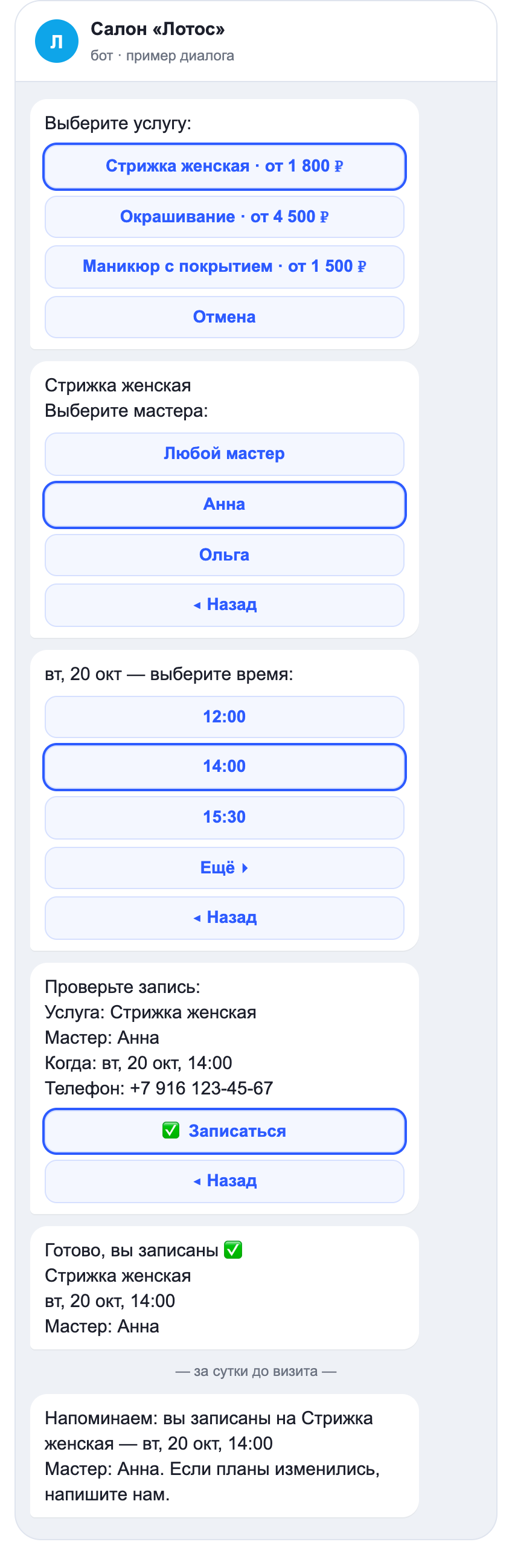
Each message shows up to five options; the rest open with the “More ▸” button, and “◂ Back” returns to the previous step. If the time slot was taken while the customer was deciding, the bot says so and offers available times again.
What to prepare in YCLIENTS
- Online booking is enabled, and the services you need are open for online booking: the bot sees exactly what the client sees in your booking form.
- SMS phone verification is turned off in the online booking settings. With it on, YCLIENTS requires an SMS code, which the bot can't receive, so the booking won't be created.
- Partner token. Register a YCLIENTS developer account at yclients.ru/appstore/developers, open “Account settings” and copy the partner token. CHBT doesn't need your YCLIENTS login or password.
Step 1. Connect your salon in CHBT
- In the app.chbt.io dashboard, open the bot → the “More” menu → “YCLIENTS”.
- In the “Online booking link or branch ID” field, paste the link your clients use to book with you online (like
n123456.yclients.ru), or the branch ID from YCLIENTS (“Overview → Summary”). - Paste the partner token and click “Connect”.
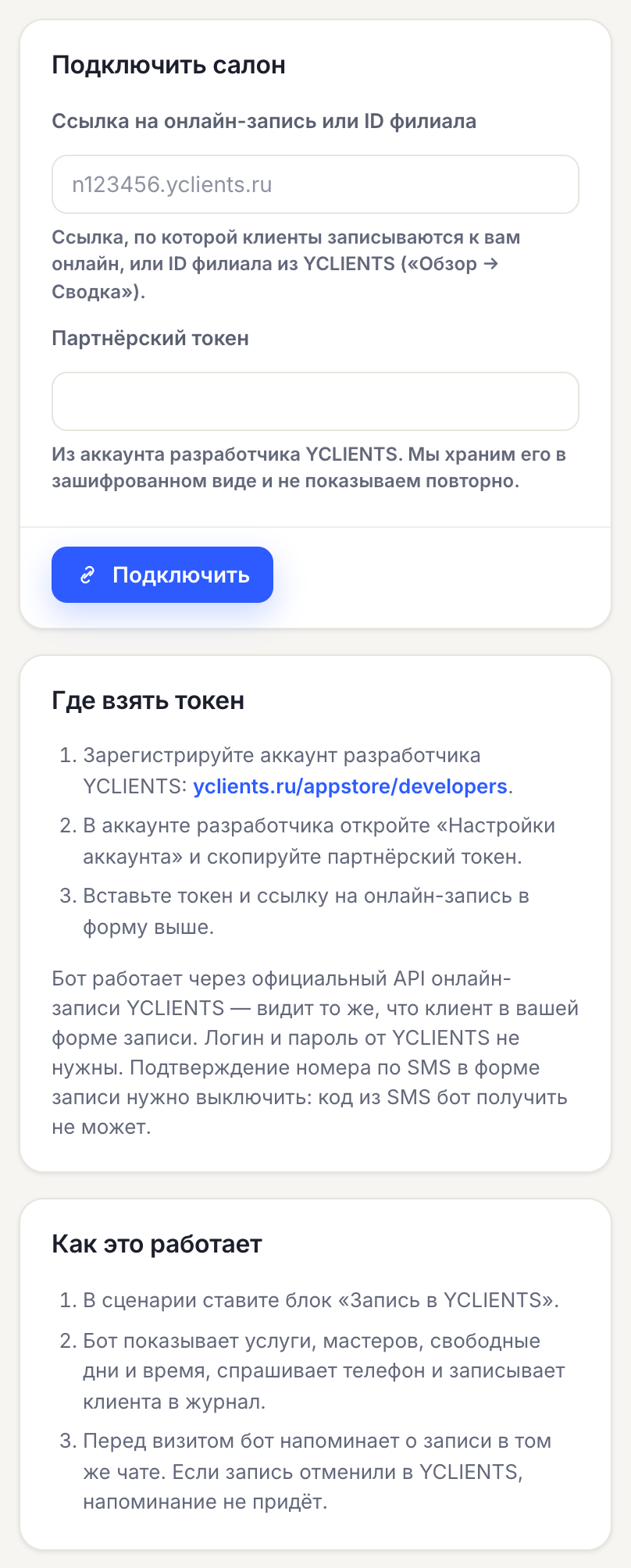
CHBT checks the connection right away and, if something is wrong, tells you why:
- “YCLIENTS did not accept the token” — the token was copied incompletely or is outdated.
- “This is a booking form for a salon chain” — a chain has one link for all branches; enter the ID of the branch you need.
- “SMS phone number verification is enabled in the booking form” — turn it off in your online booking settings.
- “This branch has no services open for online booking” — open services for online booking in YCLIENTS.
The token is stored encrypted and is never shown in the dashboard again. The bot owner and admins can connect a salon; an operator can see the section and the booking log but can't connect one.
Step 2. Add the block to your flow
Open a flow and add the “YCLIENTS booking” step (the “Actions” group). It usually comes after a greeting or a “Book” button in the menu.
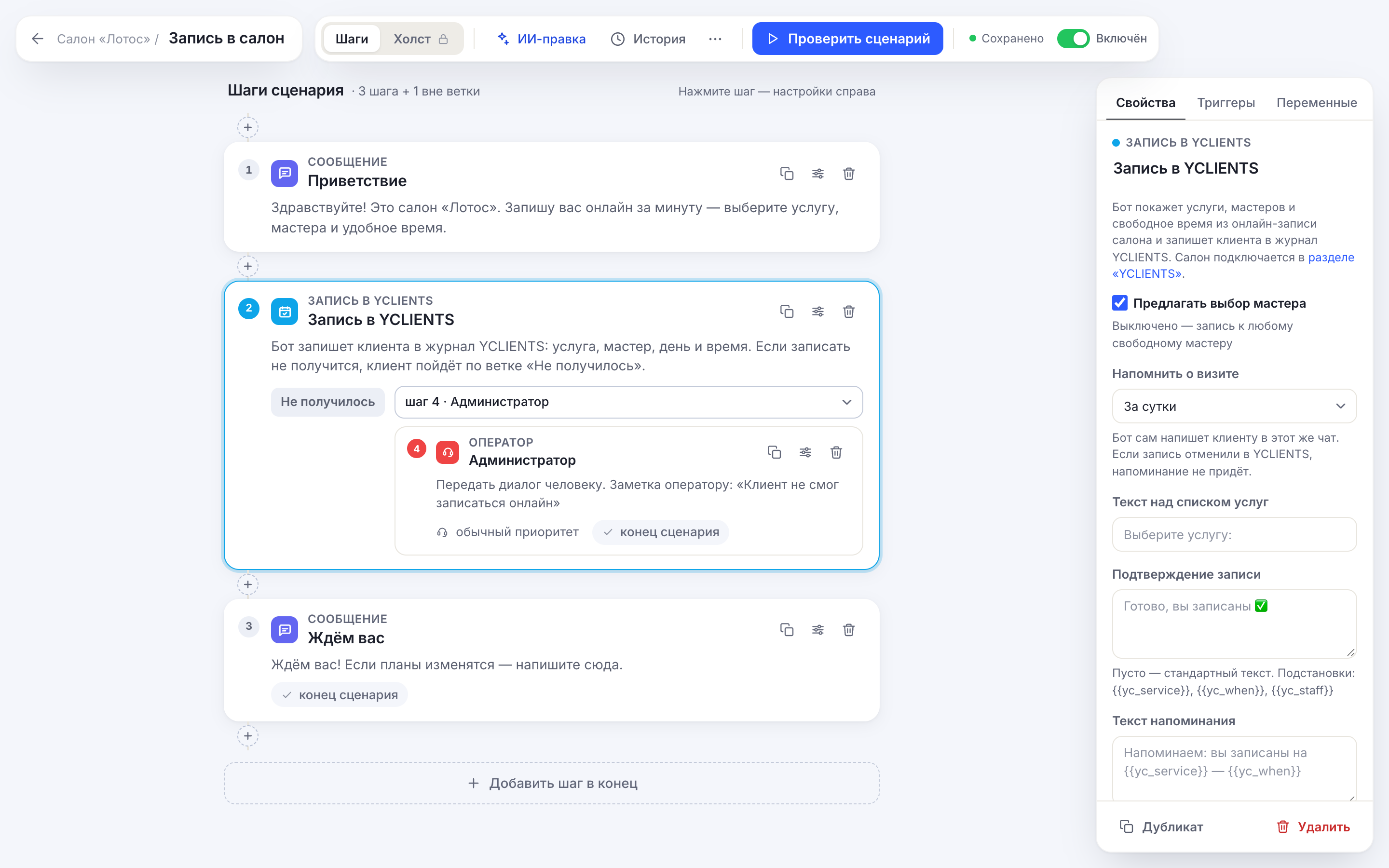
Block settings:
- “Offer a choice of staff member” — turn it off if you have only one staff member or it doesn't matter who: the client goes straight to choosing a day, and the booking is assigned to any available staff member.
- “Remind about the visit” — 2, 3, or 12 hours before, one day before (the default), or two days before, or “Don't remind”.
- Texts — the text above the service list, the booking confirmation, and the reminder. If left empty, the default texts are used. Texts support the
{{yc_service}},{{yc_when}}, and{{yc_staff}}placeholders.
The block has two outputs. “Booked” — the booking was created and the flow continues. “Failed” — the salon isn't connected, YCLIENTS didn't respond, there are no free slots, or the client tapped “Cancel”. Put an “Operator” step or a message with the salon's phone number there so the client isn't left without a reply.
Step 3. Test it
The “Check flow” button in the editor shows all the steps with the salon’s real services and times, but doesn’t create a booking in YCLIENTS — it’s a test conversation. To test booking end to end, book from your phone through the bot in a messenger: the booking will appear in the YCLIENTS journal; delete it there after checking.
No partner token yet? In the “YCLIENTS” section, click “Enable demo salon”: the block will show sample services, staff and free time, and you can go through booking as a client — all the way to the reminder. These bookings do not reach YCLIENTS.
Reminders and booking log
The bot sends the reminder to the same chat where the client booked. Before sending, it checks with YCLIENTS that the booking still exists: if an administrator deleted it, no reminder is sent. If less time is left before the visit than set in the setting (for example, the client booked an hour ahead and the reminder is set for one day before), no reminder is scheduled.
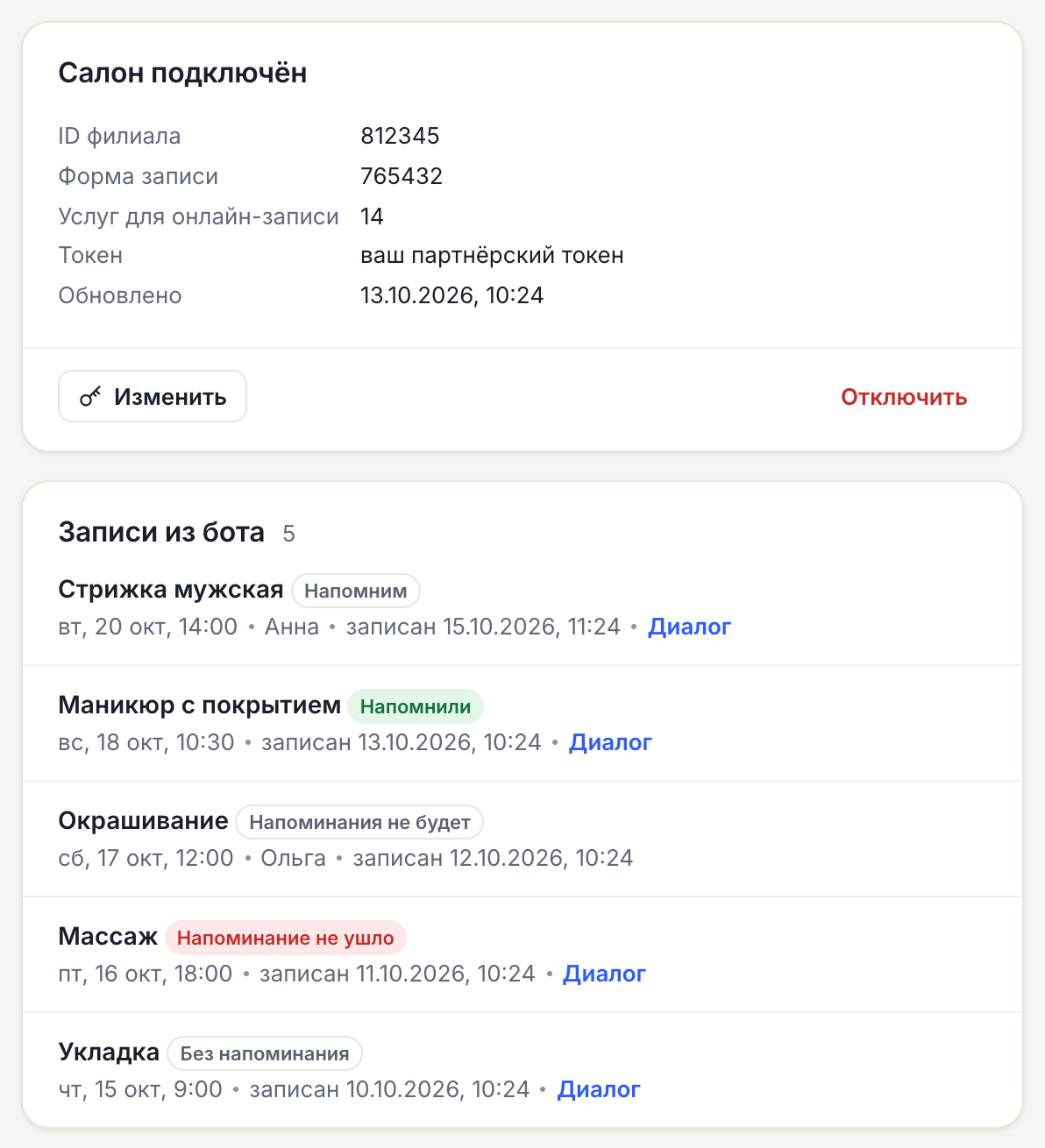
The “YCLIENTS” section lists every booking the bot made: service, visit time, staff member, a link to the conversation and the reminder status: “Reminder scheduled”, “Reminder sent”, “No reminder will be sent”, “Reminder failed” or “No reminder”.
Limitations
- The bot creates new bookings. Rescheduling or canceling a booking through the bot isn't possible — the customer writes in, and an admin changes the booking in YCLIENTS.
- The bot sends reminders only for bookings it made itself. It doesn't know about bookings an admin added to the schedule manually.
- One service per booking. The bot shows available days up to 30 days ahead.
- One bot — one location. For a chain, connect each location in its own bot.
- Online booking with SMS confirmation isn't supported.
- Reminders are designed for messengers. A website chat visitor may have left the page by then.
FAQ
Do I need my YCLIENTS login and password?
No. The bot works through the official YCLIENTS online booking API with a partner token: it sees the same things a client sees in your booking form and creates bookings the same way the form does.
The bot says “Couldn’t open online booking.” What should I check?
Open the “YCLIENTS” section in the dashboard: if YCLIENTS rejected the token or SMS confirmation is turned on in the booking form, the reason is shown on the connection card. If nothing is shown there, check that your services are open for online booking and that staff members have free slots.
Can the bot book clients into YCLIENTS from MAX?
Yes. The block works the same way in Telegram, MAX, VK, and website chat: one flow for all channels.
How much does it cost?
The “YCLIENTS booking” block is available on all CHBT plans. Check the terms for a developer account with YCLIENTS.
YCLIENTS booking flowsCHBT UpdatesIntegrationsConnecting MAX