
Home · Blog · How to build a Telegram product catalog with a cart and checkout
How to build a Telegram product catalog with a cart and checkout
Build a catalog for Paper Workshop and follow a RUB 390 notebook through checkout. You will need a connected Telegram bot, access to the Store section, three product photos and prices. You can test payment on collection without a bank card.
Add three products by hand
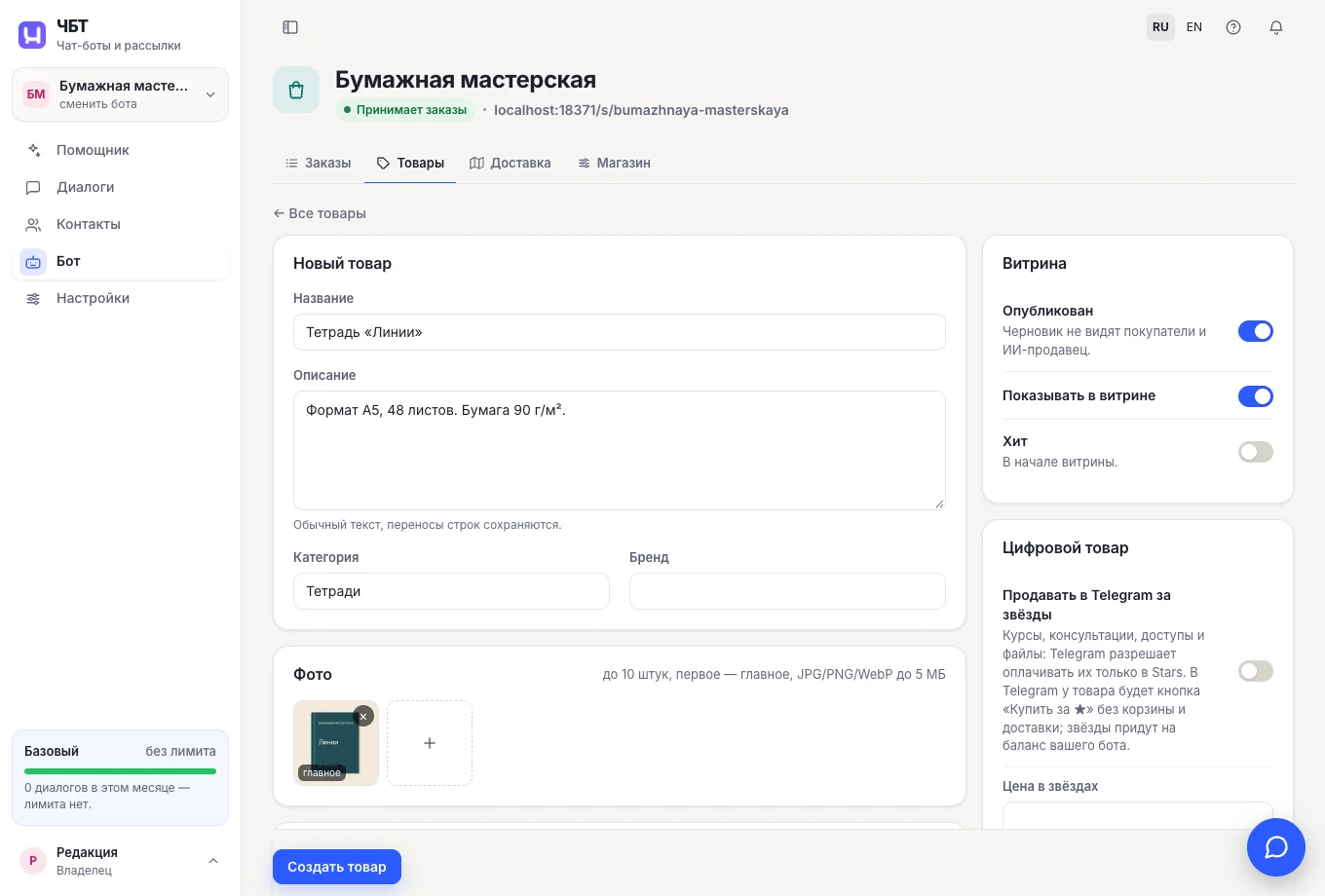
In your bot dashboard, open Store → Products → Add product. We created one listing per cover, assigned each to Notebooks, uploaded a photo and entered the A5 format and 48-page count. Turn on storefront visibility, save the product and repeat for the other two.
| Product | Price | Starting stock |
|---|---|---|
| Lines notebook | RUB 390 | 12 |
| Dots notebook | RUB 450 | 12 |
| Grid notebook | RUB 420 | 12 |
Give products distinct names so buyers can tell them apart in the cart. Check the store price. This is the amount the buyer will see on the storefront and at checkout.
Set up fulfillment and payment
Open Delivery and add a fulfillment method. We chose pickup, created a pickup point called Workshop and set the fee to zero. In a live store, enter the actual collection address.
Enable payment on collection for the test order. To charge customers at checkout, connect your own YooKassa or CloudPayments account under Payment acceptance, enter your seller details and enable online payment in the store settings. Pickup and payment on collection are enough for this first check.
Open the storefront on a phone
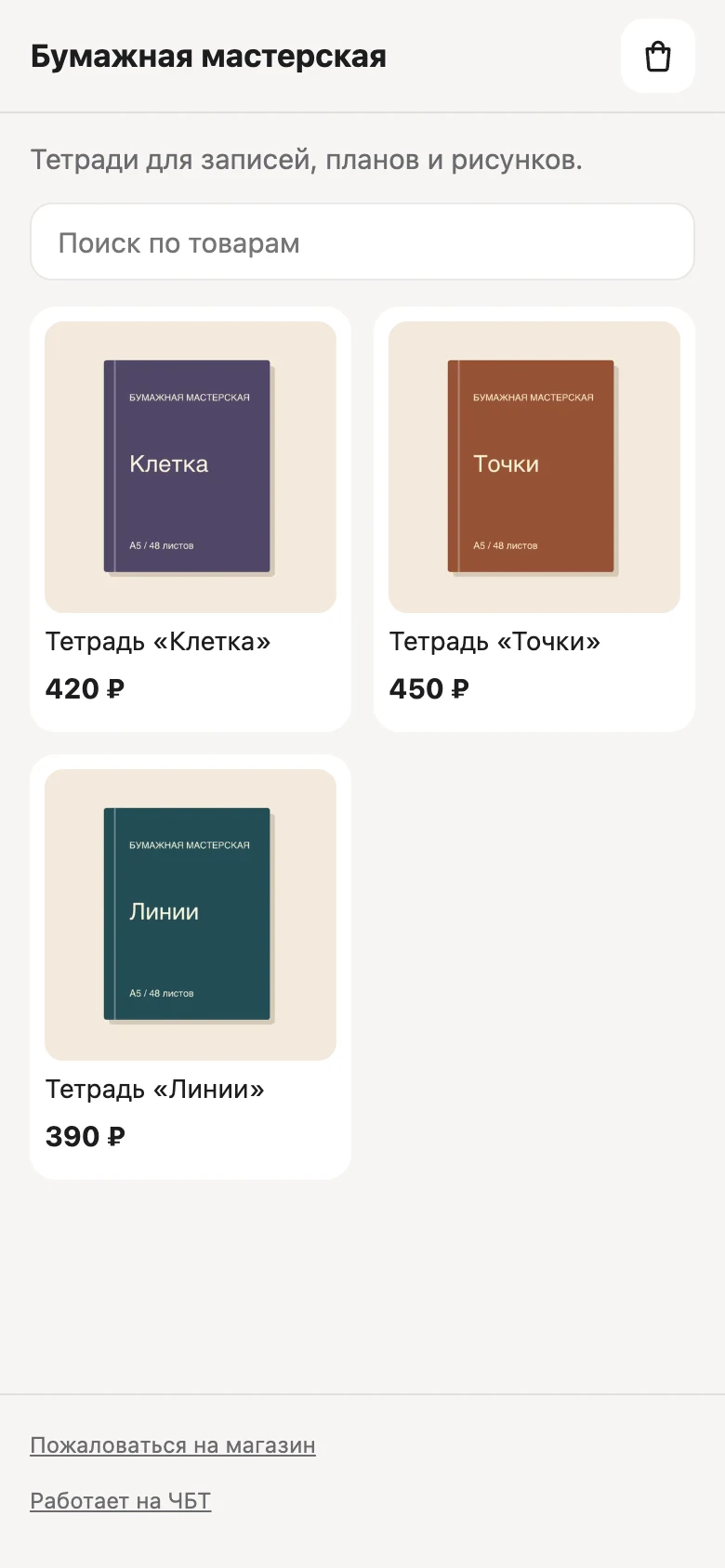
Enable orders. In a private chat with your connected Telegram bot, trigger a scenario message with an Open store button and tap it. You can also open the published storefront address in a browser. Check the covers, names and prices of all three notebooks.
The buyer screenshots below show the web storefront in Chrome on a Mac using a 390 × 844 px mobile viewport. The catalog lists Lines at RUB 390 and Dots at RUB 450.
Place the first order using the cart
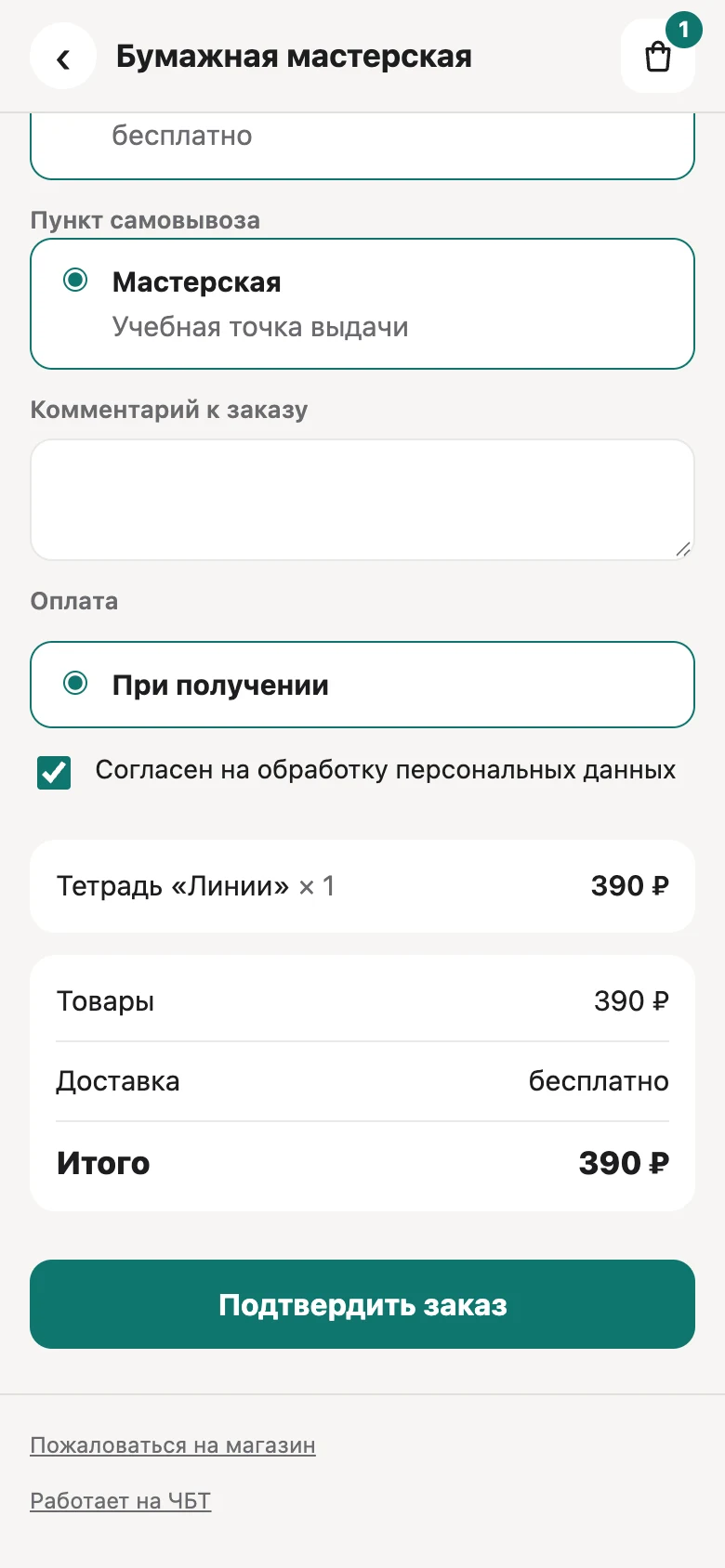
Open the Lines notebook, add it to the cart, open the cart and select Checkout. Enter test buyer details, choose pickup and select the collection point. Check the quantity, delivery fee and total before confirming. One notebook costs RUB 390, pickup is free and RUB 390 will be due on collection.
Match the order in both views
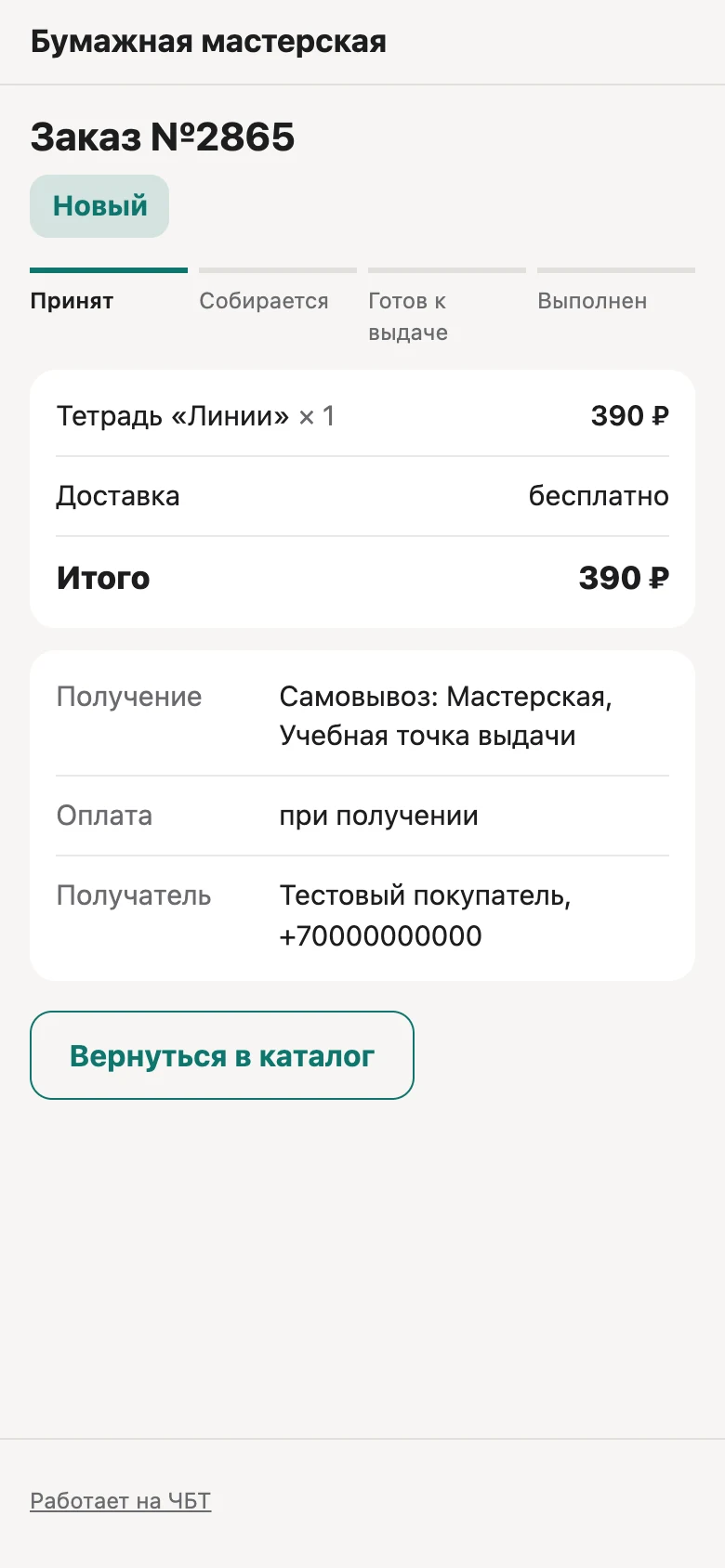
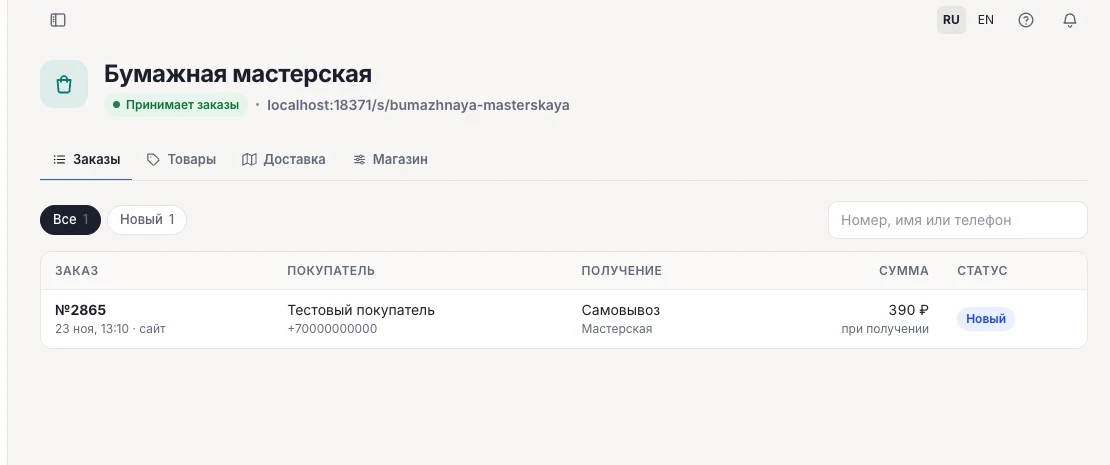
Confirm the order and note the number on the buyer confirmation. Our test produced order #2865. In the seller dashboard, open Store → Orders and find the same number. Check the total, fulfillment method and status. Payment on collection means the money is still due when the order is placed.
When to switch to a catalog import
Three listings are easy to create by hand. For a spreadsheet-based assortment, see the CSV guide. For a feed from an online store, see the YML feed guide. The bot store page covers cart and order features. If you are still choosing a platform, see the Telegram store builder comparison.