
Home · Blog · HR bot for employees: candidate applications and a newcomer guide in one evening
HR bot for employees: candidate applications and a newcomer guide in one evening
In CHBT an HR bot for employees is built from two ready-made templates: Blue-collar hiring takes applications — vacancy, consent to data processing, name, experience, schedule and phone — and creates a candidate in CRM, while New employee guide answers questions of the first days with buttons and calls HR if there is no answer. Below — how to build both templates step by step, how to check them in the test chat, what to add from the Basic plan (a survey, notices by tag, answers from documents) and what such a bot does not do.
What an HR bot from templates covers
| Task | Template or section | What you get | Plan |
|---|---|---|---|
| Applications for vacancies | Blue-collar hiring | A deal “Candidate: vacancy, name” in CRM, a notification to HR | Any |
| Newcomers’ questions | New employee guide | Answers with buttons, Call a person sends the conversation to HR | Any |
| Employee survey | Customer survey (NPS) | A score with three buttons in the NPS field, results in Survey answers | Any |
| Notices to employees | Broadcasts by tag | Text to everyone with the tag | From Basic |
| Answers on regulations and instructions | Answers from documents (AI) | An AI agent answers from your base and hands over to an employee when there is no answer | From Basic |
The hiring and guide templates have no AI, so they work on the Free plan: 30 conversations a month and one operator. That is enough to test one vacancy. If several people handle applications, you need Basic — 650 ₽ a month per bot: HR staff are invited in the Access section, and there is no conversation limit.
Step 1. Choose the template in the wizard
- Open the bot and press Create a flow.
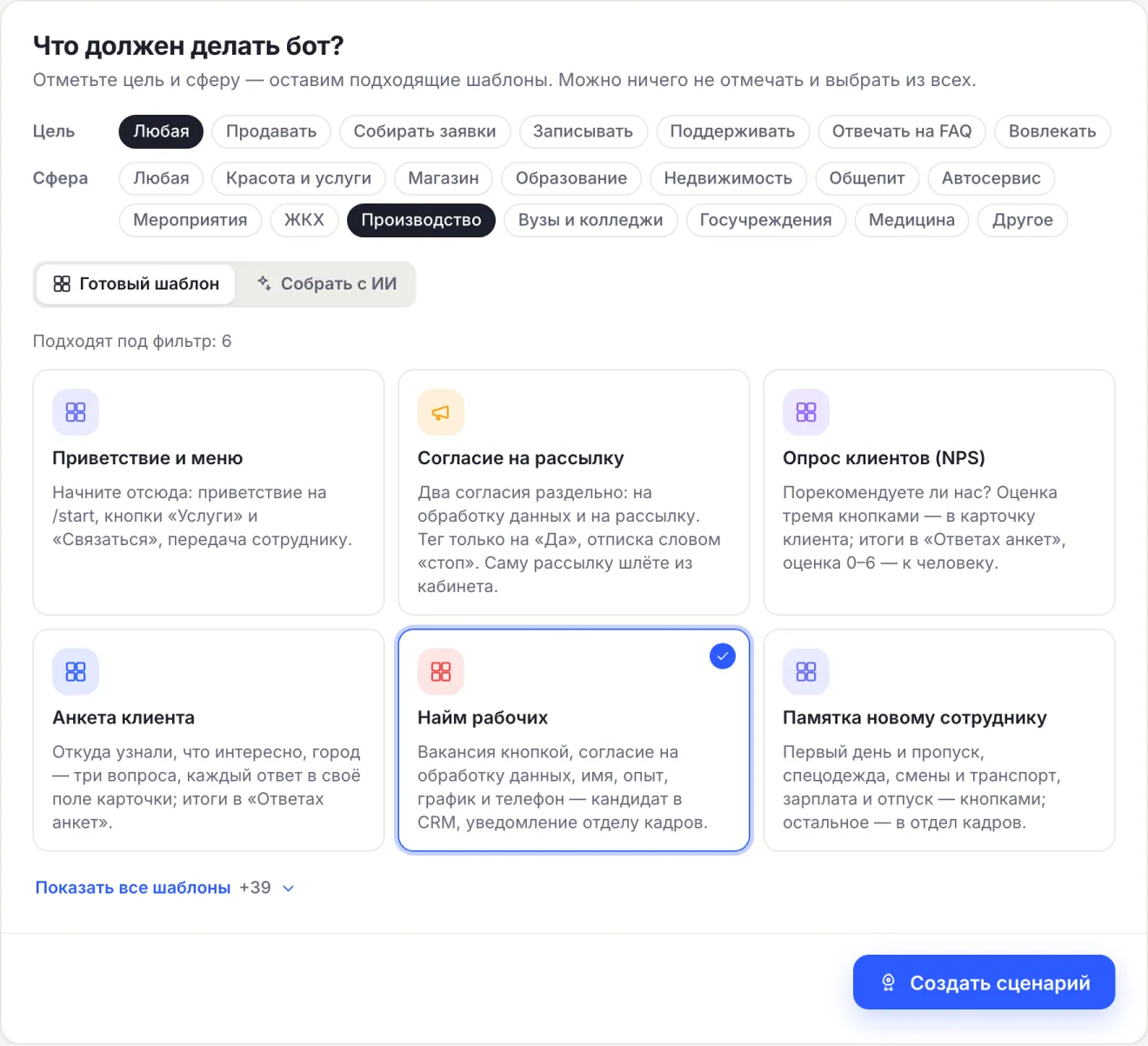
- In the Sphere row choose Manufacturing — templates for hiring and onboarding remain.
- Choose the Blue-collar hiring card and press Create a flow.
The flow is turned on right away and opens in the editor. If another flow already answers /start in the bot, the new one is created turned off so as not to break a working bot: check it and turn it on instead of the old one. Create the newcomer guide the same way, as a second flow.
Step 2. Put in your vacancies and consent
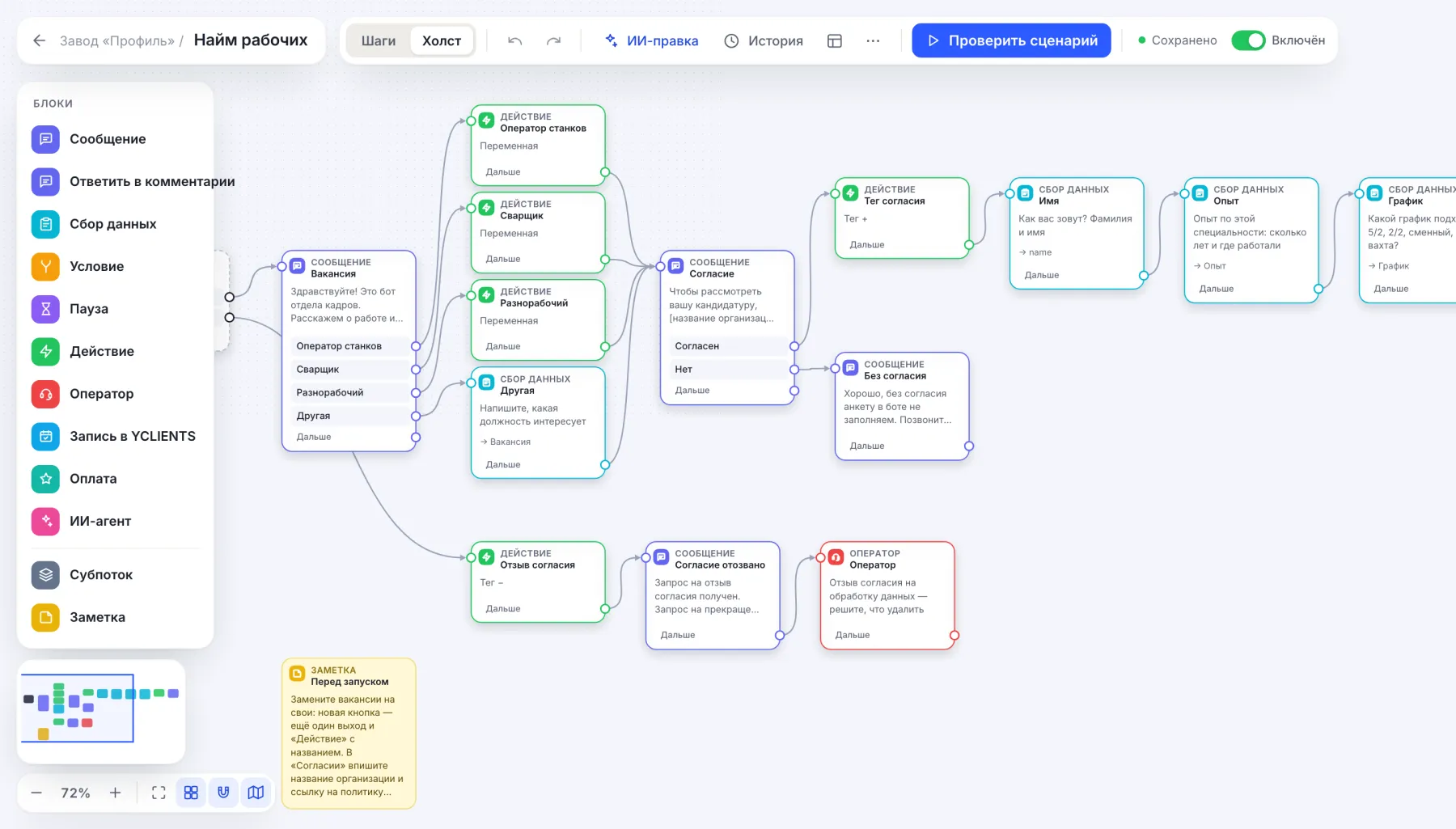
On the canvas the flow goes from left to right: a vacancy button → Consent → Name, Experience, Schedule, Phone → Application → Sent. What to change before launch:
- Vacancies. In the first message replace the Machine operator, Welder and General worker buttons with your own. A new vacancy is a new button and an Action block that writes its name into the
vacancyvariable. The Other button asks for the position as text. - Consent. In the Consent block enter the organization name and a link to the personal data processing policy. The bot asks for consent before the name and phone: on No the form is not filled in and nothing is written to the card. Put the HR phone number into No consent.
- Questions. Edit the Experience and Schedule texts to your terms: for example, “30/30 rotation” instead of a list of schedules.
The words “withdraw consent” and “delete my data” at any moment remove the consent tag and pass the request to an employee in Conversations — a person decides what to delete. More on consent — in the article 152-FZ and chatbot.
Step 3. Check the application in the test chat and in CRM
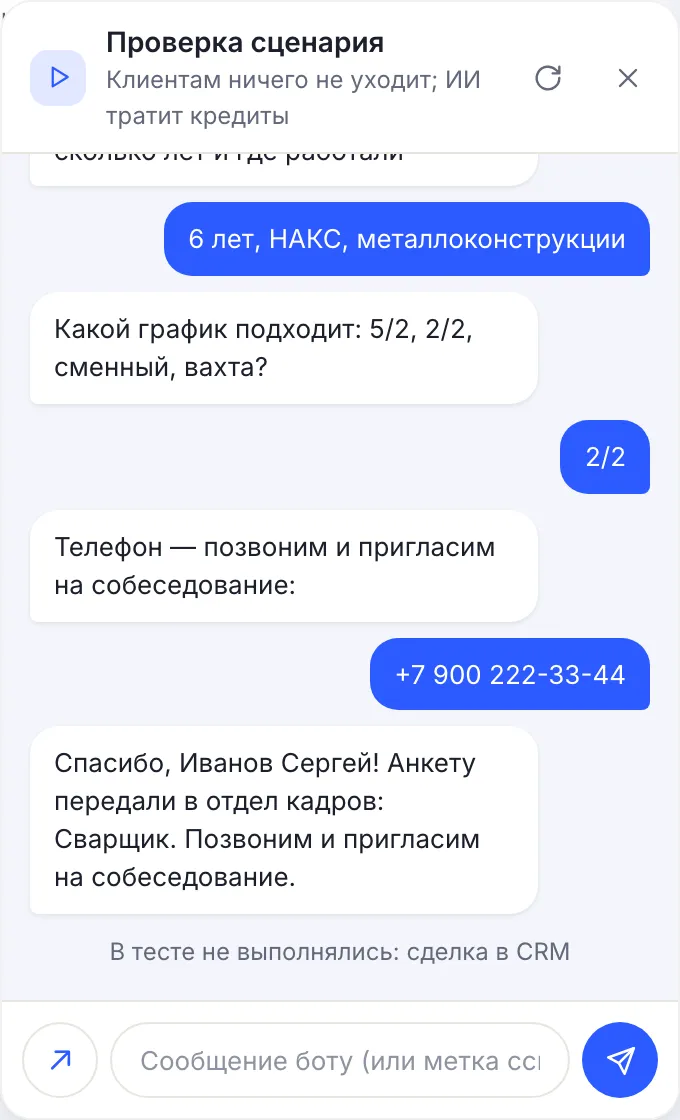
- Press Check flow in the editor and send
/start. - Go through the application as a candidate: vacancy, Agree, name, experience, schedule, phone.
- At the end the bot should reply “Thank you, … We have passed your form to HR”. The line “Not run in the test: CRM deal” is normal: the test chat does not create a deal and does not use the conversation limit.
To check CRM, connect a channel — Telegram, MAX or VK — and go through the application from your phone. The result:
- in CRM — a deal “Candidate: Welder, Sergey Ivanov” in the New column;
- in Contacts — a card with the phone, the Experience and Schedule fields, and the consent and candidate tags;
- for operators — a notification “Application: vacancy — name, experience, schedule, phone” in the dashboard and as a push, if push is on.
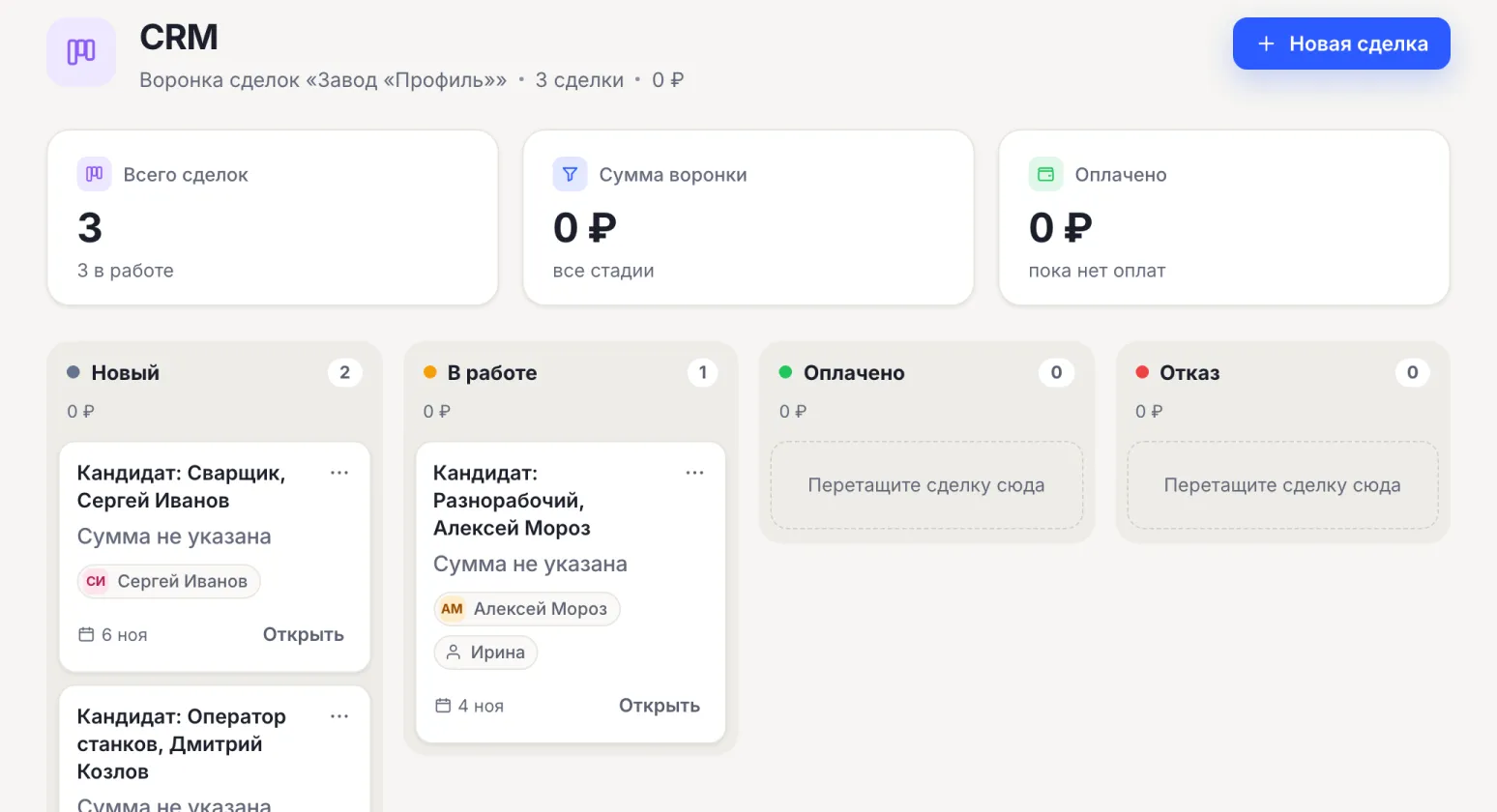
CRM stages are shared by all bots and cannot be renamed: New, In progress, Paid, Denial. For hiring it is convenient to use In progress for “invited to an interview” and Denial for “not a fit”. An export of all candidates with fields is a CSV from Contacts filtered by the candidate tag.
Step 4. Place the bot link
- In the vacancy text on job sites and social networks: “Apply in a minute — in Telegram” and a link to the bot.
- At the checkpoint and on the notice board — a QR code with the link. Where to put it and how to count visits — in the article where to place a bot QR code.
- In MAX and VK — the same bot link in that network: the flow is shared by all connected channels.
New employee guide: what to replace
The New employee guide template is a menu of four topics: First day and pass, Workwear and PPE, Shifts and transport, Pay and leave. The answers are drafts that say “replace with your own”.
- In the editor open each answer and enter your own: the time and place on the first day, where to get the pass and workwear, the shuttle bus schedule, pay dates, the leave procedure.
- Add a new topic as a menu button and an answer message.
- Check Call a person: the conversation should go to Conversations marked “Question from a new employee”.
Give the guide link on the first day together with the pass or in the welcome email. If newcomers ask questions outside the menu, HR sees them in Conversations — a signal to add a topic.
From the Basic plan: a survey, notices, answers from documents
- Employee survey. The Customer survey (NPS) template works on Free too: change the question, for example to “Would you recommend us as an employer?”. The survey starts with the word “survey” or a link with the
oprostag, the score goes to the NPS field of the card, results — to Contacts → Survey answers. The survey will not be anonymous: the answer is stored in the card of whoever replied. Say so in the invitation. - Notices. Add Action → Add a tag
сотрудникto the guide. Send a notice about a schedule change or a medical check in Broadcasts by this tag, set the date in the Scheduled start field. A broadcast goes as text and only to those who have already written to the bot. How tags work in broadcasts — in the article broadcasts by tags. - Answers from documents. The Answers from documents (AI) template answers in its own words from regulations and instructions, and if the base has no answer, it passes the question to an employee. The knowledge base is up to 15,000 characters per agent, a few pages: take from the regulations what people ask about most. On installation the template switches the bot to AI in Russia mode: Yandex models answer. The mode limits the choice of models and does not by itself guarantee compliance with 152-FZ. How to prepare the base — in the article a knowledge base for an AI agent.
You can try paid features for free: connecting the first channel turns on 3 days of the Business plan.
What an HR bot in CHBT does not do
- It is not integrated with 1C payroll and HRM systems. Candidates live in CHBT CRM and are exported to CSV from Contacts.
- It does not replace a corporate messenger. It is a bot in Telegram, MAX or VK: an employee writes from their own account, there is no sign-in with a corporate account (SSO).
- It does not run anonymous surveys. The bot knows who answered.
- It does not keep timesheets or track working hours.
Organizations and public institutions can pay for a plan by invoice from a bank account; the contract and closing documents can also go through electronic document exchange (EDI). To get an invoice, write to help@chbt.io.
Hiring and the guide for plants and workshops are collected on the page a chatbot for manufacturing.
Blue-collar hiring templateNew employee guide templateChatbot for manufacturing152-FZ and chatbotRequests from a bot in CRM