
Home · Blog · Bot for doctor appointments: how to build it in 15 minutes without collecting extra data
Bot for doctor appointments: how to build it in 15 minutes without collecting extra data
In CHBT a bot for doctor appointments is built from the Doctor appointment template: the patient chooses a specialist, consents to data processing, writes their full name, a convenient time and a phone, and a request “Appointment: specialist — full name” appears in CRM while the administrator gets a notification. It is not a calendar: the bot does not show free slots, the administrator confirms the time by phone, and the template deliberately does not ask about complaints or diagnoses. Below — building it in 15 minutes, checking it, a visit reminder and the limits.
How booking through the bot works
| Step | What the patient sees | What the clinic keeps |
|---|---|---|
| 1. Specialist | Therapist, Pediatrician, Dentist, Other buttons | A variable with the specialist |
| 2. Consent | The consent text, Agree and No buttons | The consent tag; nothing on No |
| 3. Patient’s full name | “Patient’s last name, first name and patronymic” | The name in the card |
| 4. Convenient time | “A convenient day and time as text” | The Convenient time field |
| 5. Phone | A number with a format check | The phone in the card |
| 6. Result | “The administrator will call and confirm the time” | A deal in CRM, a notification, the appointment tag |
The template has no AI and works on any plan. On Free — 30 conversations a month and one operator: enough to test booking. For a stream of patients and several administrators — Basic, 650 ₽ a month per bot: no conversation limit, administrators are invited in the Access section.
Step 1. Create a flow from the template
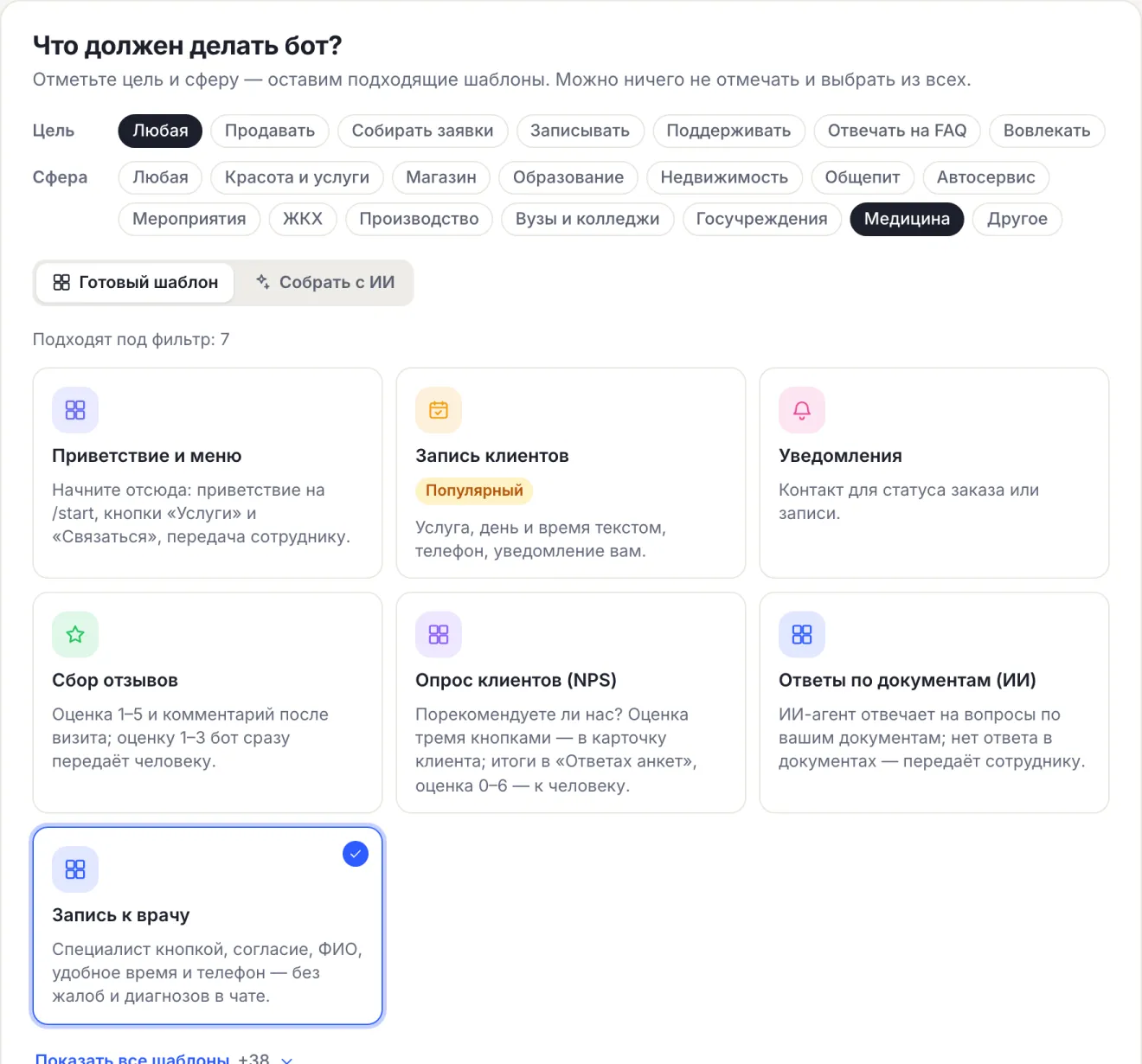
- Open the bot and press Create a flow.
- In the Sphere row choose Healthcare.
- Choose the Doctor appointment card and press Create a flow.
The flow opens in the editor turned on. If another flow already answers /start in the bot, the new one is turned off: check it and turn it on instead of the old one.
Step 2. Replace the specialists and the consent text
- Specialists. In the first message, Specialist, replace the buttons with your doctors or departments. A new specialist is a new button and an Action block that writes it into the
doctorvariable. The Other button asks for the specialist as text. - Consent. In the Consent block replace “[clinic name]” and “[policy link]” with your own. Consent is asked before the full name and phone: on No the bot records nothing and suggests calling the front desk — put its number into No consent.
- Final text. You can add the address and directions to Booked. Keep the phrase “do not send complaints or test results to the chat”.
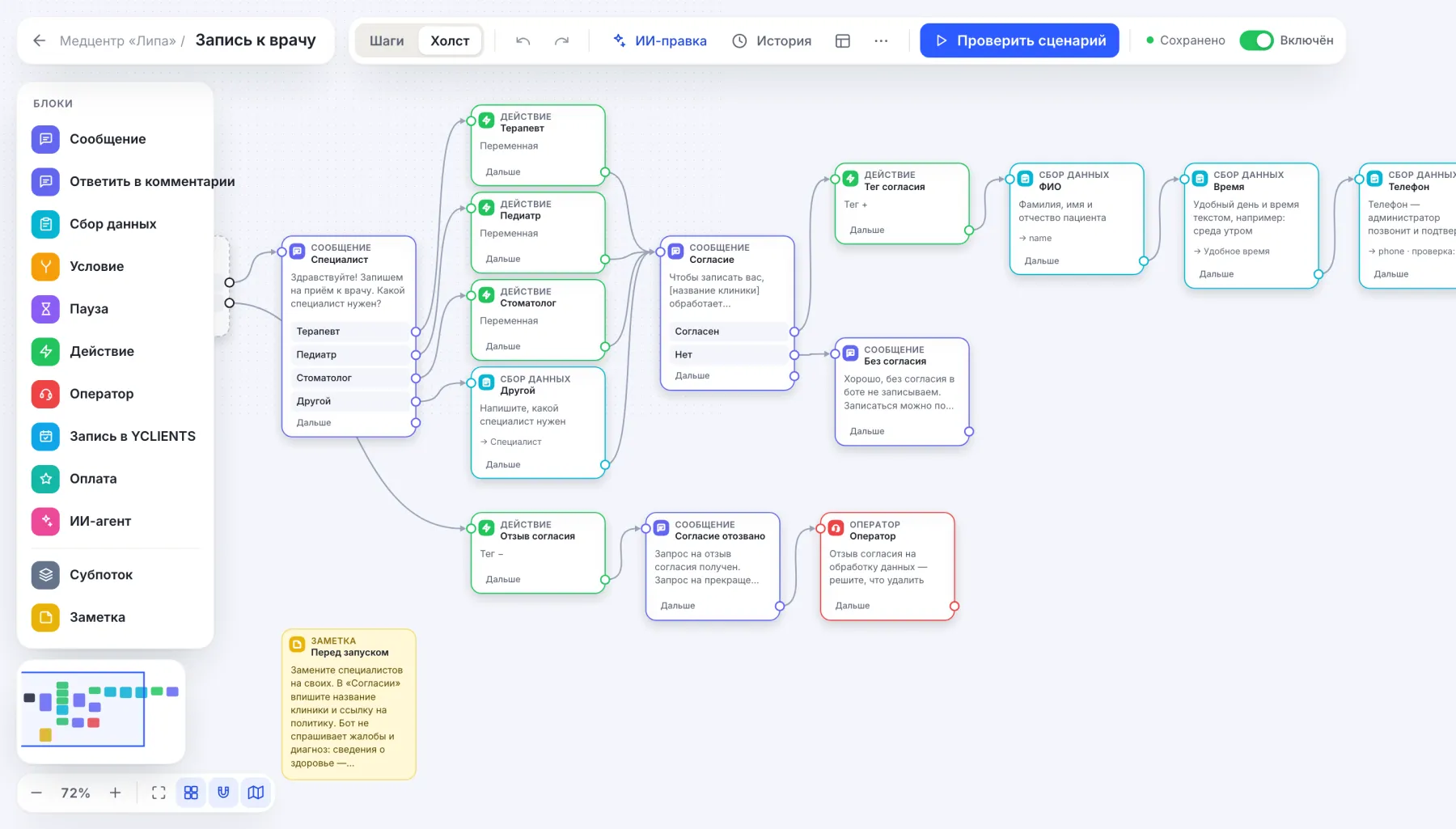
The words “withdraw consent” and “delete my data” remove the consent tag and pass the request to the administrator in Conversations.
Why the bot does not ask about complaints and diagnosis
Health information is a special category of personal data under 152-FZ. Booking does not need it: the administrator only needs the specialist, the time and the phone. So the template has no “what is bothering you” question, and the last message asks not to send complaints or test results to the chat.
Do not add such a question yourself. If a patient still writes about symptoms, the administrator replies in Conversations and suggests discussing it at the appointment. More on consent and roles — in the article 152-FZ and chatbot.
Step 3. Check the booking
- In the editor press Check flow and send
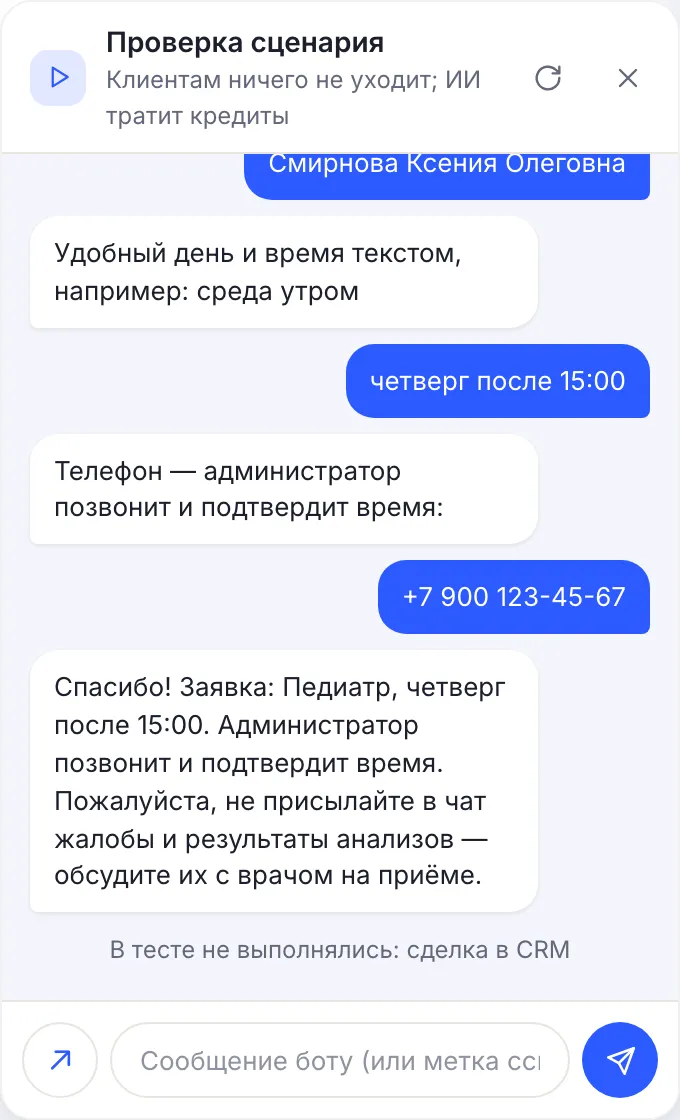
/start. - Go through the booking: specialist, Agree, full name, “Thursday after 15:00”, phone.
- The expected ending: “Thank you! Request: Pediatrician, Thursday after 15:00. The administrator will call and confirm the time”. The line “Not run in the test: CRM deal” is normal.
- Go through the booking again and press No on consent: the bot should reply with the No consent text and not ask for the full name.
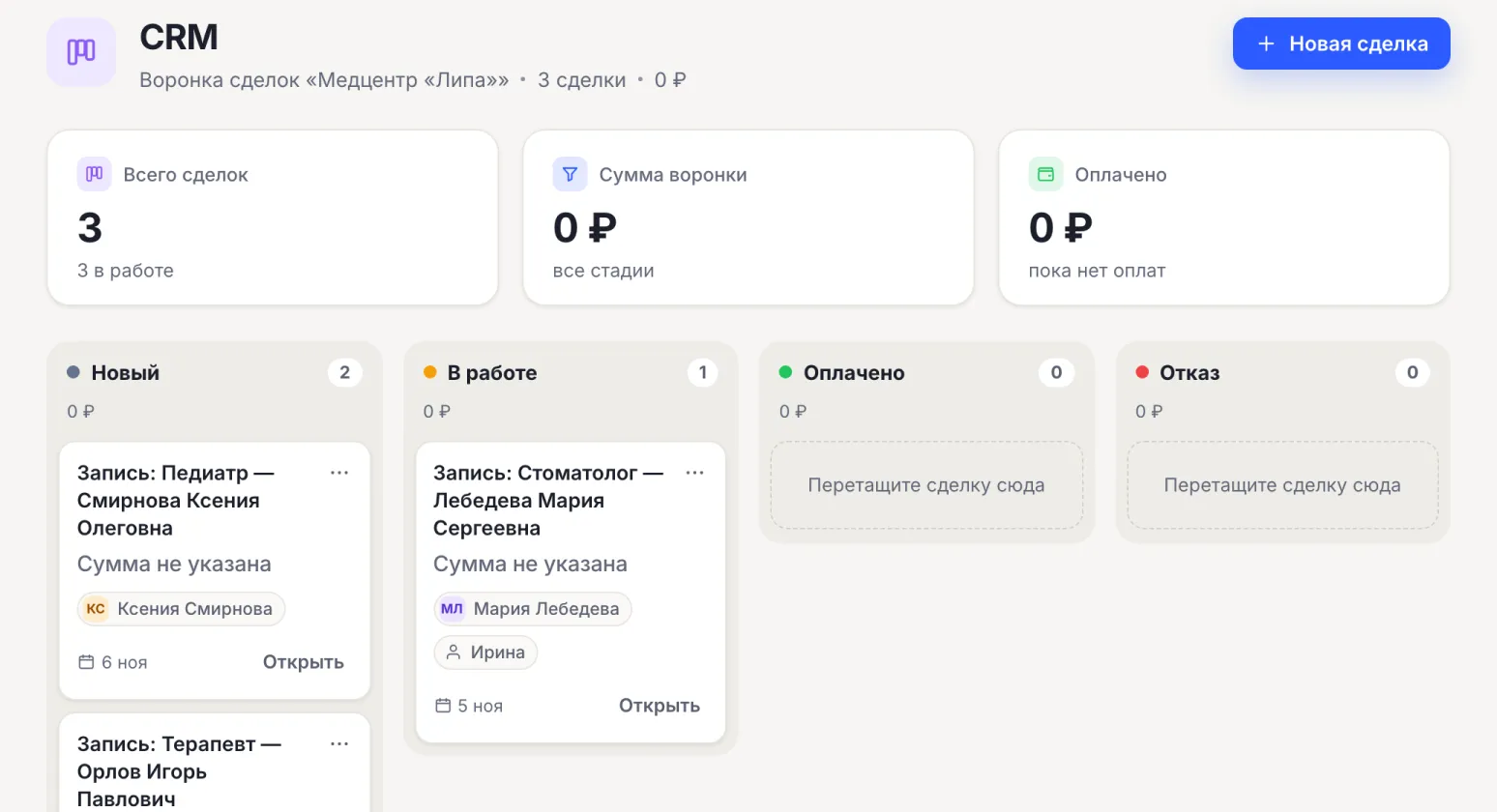
Then connect a channel — Telegram, MAX, VK or the website chat — and book from your phone. A deal “Appointment: Pediatrician — Ksenia Olegovna Smirnova” appears in CRM in the New column, and administrators get a notification with the specialist, time and phone.
Step 4. Confirmation and a visit reminder
The template does not put the patient into a schedule and does not send reminders itself. A working routine:
- The administrator sees the request in CRM, calls, confirms the time and moves the deal to In progress.
- They write the confirmed time to the patient in Conversations — the message goes to the same messenger.
- For a reminder the administrator adds a tag with the date to the patient’s card, for example
визит-12-11, and creates a broadcast by this tag in Broadcasts, with the day before in the Scheduled start field. Broadcasts are from the Basic plan, go as text and only to those who have written to the bot.
The Notifications template only collects a phone for future messages — notification texts are still sent from Broadcasts. If the clinic keeps its schedule in YCLIENTS, free time and a reminder come from the YCLIENTS booking block — see the article YCLIENTS booking through a chatbot.
AI, 152-FZ and what the template does not do
- No calendar or free slots. The patient writes the time in words, the administrator confirms it.
- No integration with a medical information system or doctors’ schedules: appointments stay in CHBT CRM, the export is a CSV from Contacts.
- No AI in the booking itself. If you later add an AI agent to answer questions about prices and test preparation (the Answers from documents template, from Basic), on installation it switches the bot to AI in Russia mode. For an agent created manually, the mode is turned on on the AI agents page with the Turn on AI in Russia button: for healthcare it is not turned on automatically. The mode limits the choice of models and does not by itself guarantee compliance with 152-FZ.
Organizations and public institutions can pay for a plan by invoice from a bank account; the contract and closing documents can also go through electronic document exchange (EDI). To get an invoice, write to help@chbt.io.
Booking, reminders and reviews for medical centers are collected on the page a chatbot for a clinic.
Doctor appointment templateChatbot for a clinic152-FZ and chatbotScheduled broadcastYCLIENTS booking through a chatbot