
Home · Blog · Accepting citizen appeals through a chatbot: a template, consent and appeals in CRM
Accepting citizen appeals through a chatbot: a template, consent and appeals in CRM
In CHBT accepting citizen appeals online through a chatbot is built from the Citizen appeals template: a person chooses a topic, consents to data processing, writes their full name, address, the substance of the appeal and a phone, and a deal “Appeal: topic — full name” appears in CRM while staff get a notification. Whether such a message counts as an official written appeal under Federal Law 59-FZ and how fast to reply is decided by your organization — the bot only accepts and passes it on. Below — building it step by step, checking it, working with appeals in CRM and booking a personal reception with a second template.
What the template does
| Step | Bot question | Where it is written |
|---|---|---|
| 1. Topic | Buttons Public spaces, Housing and utilities, Social issues, Other | A topic variable |
| 2. Consent | The consent text, Agree or No | The consent tag; nothing on No |
| 3. Full name | “Last name, first name and patronymic” | The name in the card |
| 4. Address | “The address the appeal relates to, or your address” | The Address field |
| 5. Substance | “Describe the substance of the appeal in one message” | The Appeal field |
| 6. Phone | “Phone for contact” | The phone in the card |
| 7. Result | “Thank you, the appeal has been accepted…” | A deal in CRM, a notification, the appeal tag |
The template has no AI and works on any plan. Free — 30 conversations a month and one operator, for a trial. If several specialists handle appeals, you need Basic, 650 ₽ a month per bot: no conversation limit, staff are invited in the Access section.
Step 1. Create the flow
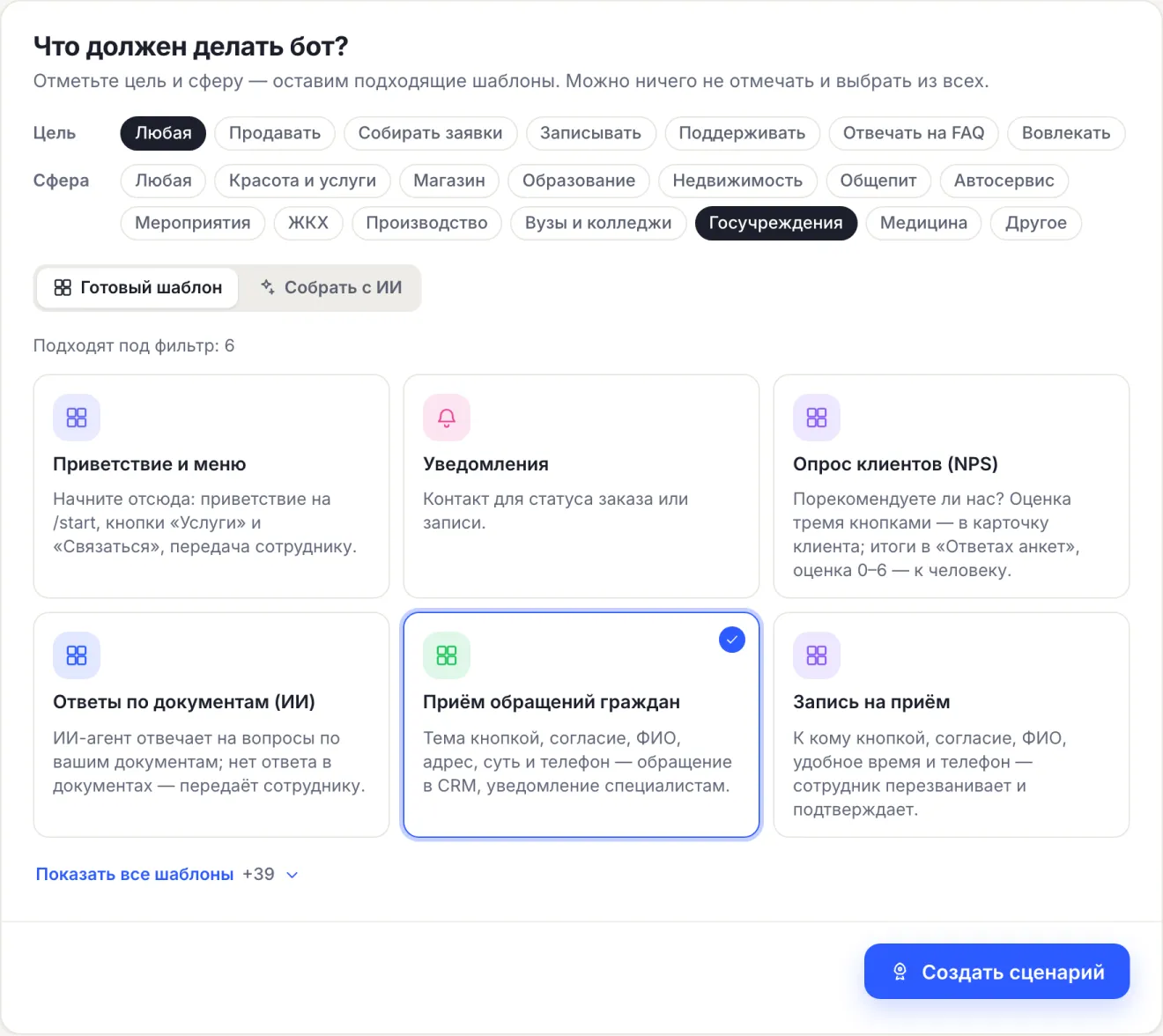
- Open the bot and press Create a flow.
- In the Sphere row choose Public institutions.
- Choose the Citizen appeals card and press Create a flow.
The flow opens in the editor turned on, and if another flow already answers /start — turned off, so as not to break a working bot.
Step 2. Set up topics, consent and deadlines
- Topics. Replace the buttons with your areas: “Roads”, “Schools and kindergartens”, “Transport”. A new topic is a button and an Action block that writes the name into the
topicvariable. - Consent. In the Consent block enter the organization name and a link to the personal data processing policy. On No the bot records nothing: in No consent give a phone and an address for appealing in person.
- Deadlines and the official channel. In Received replace “Replace this text with response deadlines” with your procedure. If by your organization’s rules an official appeal is filed only through the online reception, give a link to it here.
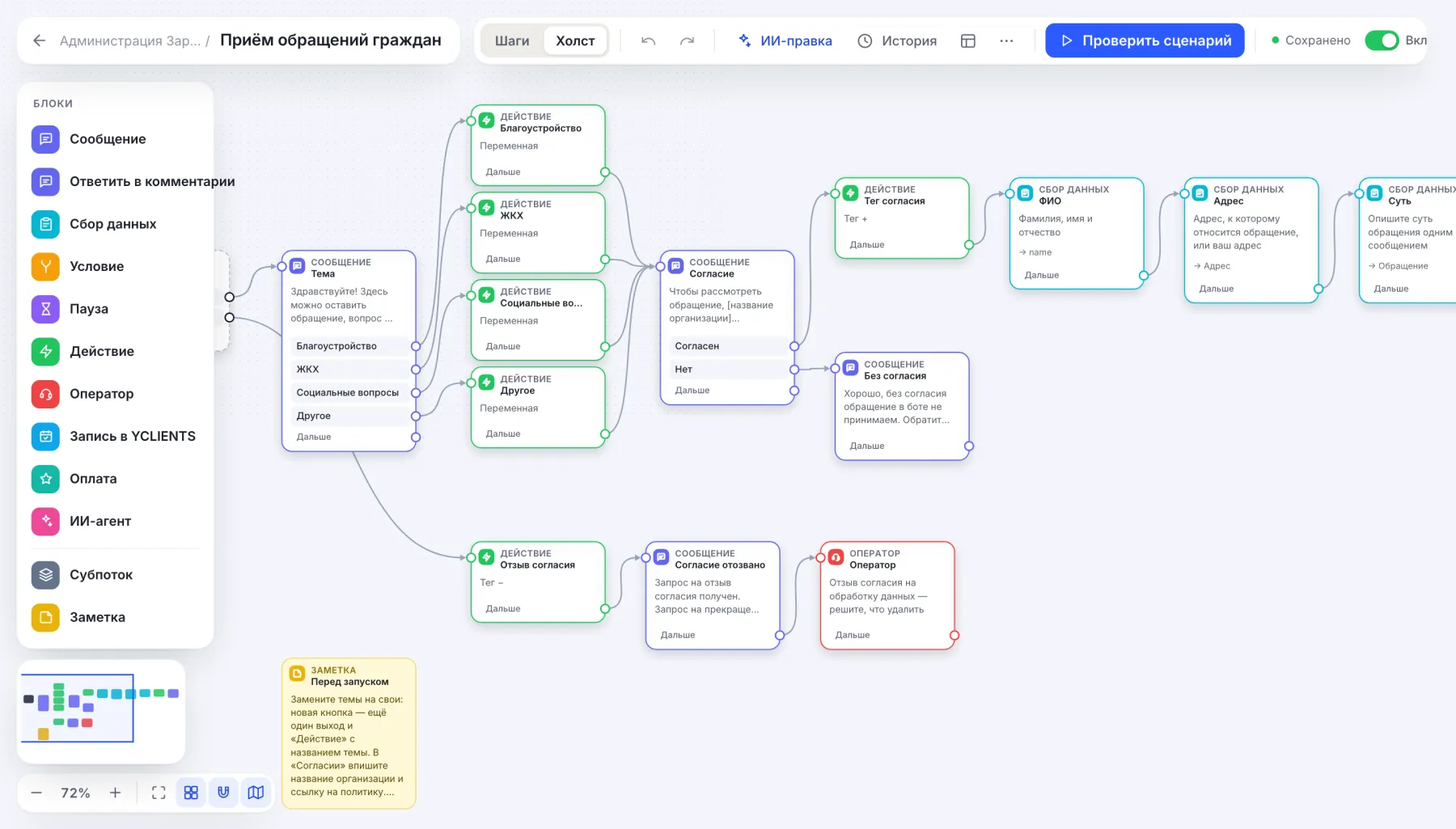
The words “withdraw consent” and “delete my data” remove the consent tag and pass the request to an employee in Conversations: they decide what to delete. More — in the article 152-FZ and chatbot.
Step 3. Check it in the test chat
- In the editor press Check flow and send
/start. - Go through an appeal: topic, Agree, full name, address, substance, phone. Without a code the bot will not accept the phone and shows an example.
- The ending: “Thank you, the appeal has been accepted: Public spaces. A specialist will review it and contact you by phone…”. The line “Not run in the test: CRM deal” is normal: the test does not create a deal.
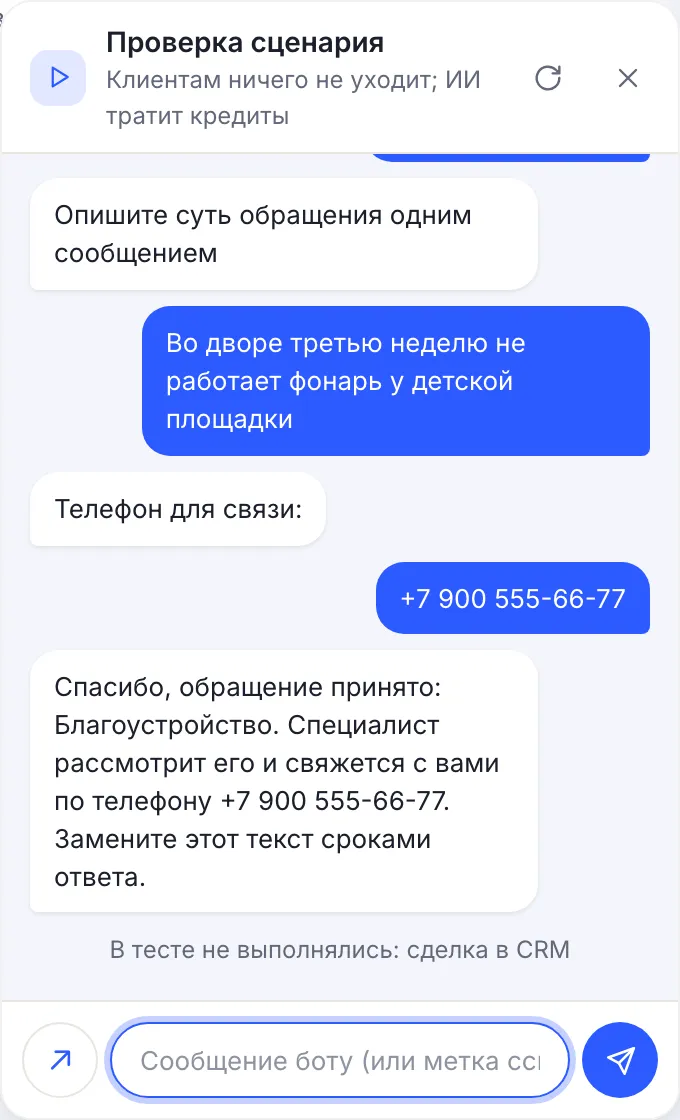
After that connect a channel — Telegram, MAX, VK or the website chat — and send an appeal from your phone to see the deal in CRM.
Step 4. Working with appeals in CRM
Each appeal is a deal “Appeal: Public spaces — Andrey Nikolaevich Petrov” in the New column. Specialists get a notification with the topic, full name, address, phone and text — in the dashboard and as a push, if push is on.
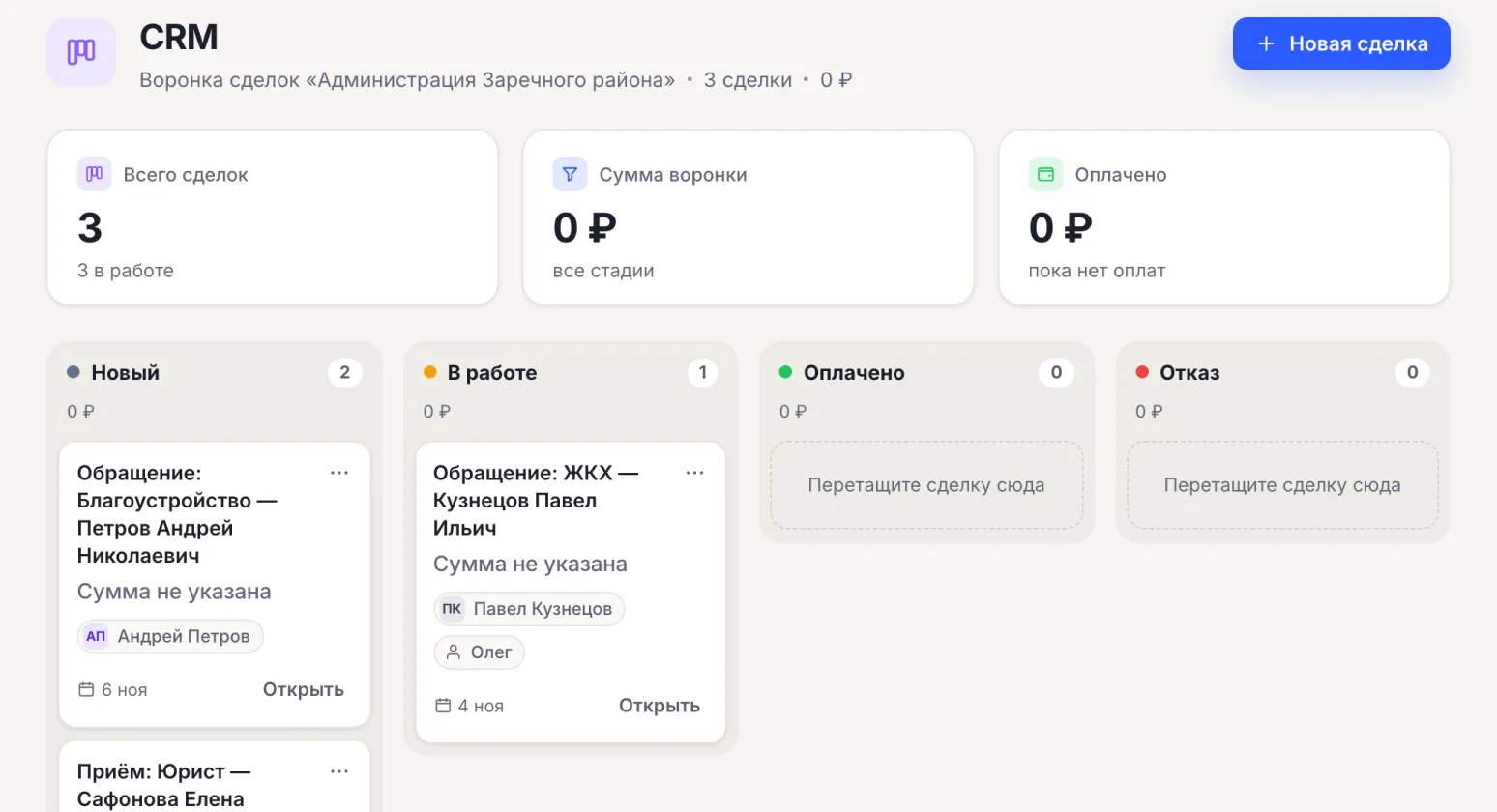
- Assign an executor. Open the deal, choose Responsible, add a note about passing it to a department if needed.
- Move it through stages. The stages are fixed and shared by all CHBT bots: New, In progress, Paid, Denial. They cannot be renamed, so agree: New — received, In progress — under review, Paid — answered, Denial — outside our competence.
- Reply to the citizen. From Conversations — the message goes to the same messenger. The bot does not report the appeal status itself.
- Report. Contacts → filter by the appeal tag → CSV export: the address and the appeal text as separate columns.
Booking a personal reception
The second template of the sphere is Appointment booking for a reception. A person chooses whom they need to see (Head, Specialist, Lawyer, Other), consents to data processing, writes their full name, a convenient time in words and a phone. A deal “Reception: whom — full name” appears in CRM, an employee calls back and confirms the time.
It is not a calendar: the bot does not show free slots. Replace the buttons with your officials or departments and enter the organization name in Consent. It is created from the same wizard — the Appointment booking for a reception card.
What to know before launch
- The bot does not register appeals under 59-FZ. No appeal number is issued and no response deadline is counted. If a message in the bot counts as an official appeal for you, register it in your document management system from the CRM deal.
- There are no integrations with SSTU, Gosuslugi or document management systems. Data is moved with a CSV export.
- The bot does not write first. Put the link and a QR code on the website, in the institution’s social networks and on the stand in the reception area.
- There is no AI in these templates. If you later connect an AI agent to answer from regulations — the Answers from documents template, from Basic — it switches the bot to AI in Russia mode. The mode limits the choice of models and does not by itself guarantee compliance with 152-FZ.
Organizations and public institutions can pay for a plan by invoice from a bank account; the contract and closing documents can also go through electronic document exchange (EDI). To get an invoice, write to help@chbt.io.
Templates for administrations and institutions are collected on the page a chatbot for an administration and a public institution.
Citizen appeals templateAppointment booking for a reception templateChatbot for an administration and a public institution152-FZ and chatbotRequests from a bot in CRM