
Home · Blog · How to open your storefront inside MAX
How to open your storefront inside MAX
To launch a shop in MAX, set up the storefront in CHBT, connect it to the bot as a mini app and place a test order. This walkthrough follows a pickup shop from the first product to an order in the seller dashboard. It also covers missing buttons, browser links and orders you cannot find.
Choose how customers will open the shop
CHBT uses one storefront for all connected channels, with shared products, prices, cart and fulfillment options. In MAX, the storefront can open from a regular link or inside the messenger. Start by testing the link, then enable the mini app and repeat the test in a private chat.
| Option | What the customer sees | What to configure |
|---|---|---|
| Link in a message | The button takes the customer to the storefront. MAX may open the link in a browser. | An open storefront and an “Opens the shop” button in the flow. |
| Mini app | The storefront opens inside MAX. | The storefront URL in the same bot’s settings in MAX Partners and the switch in CHBT. |
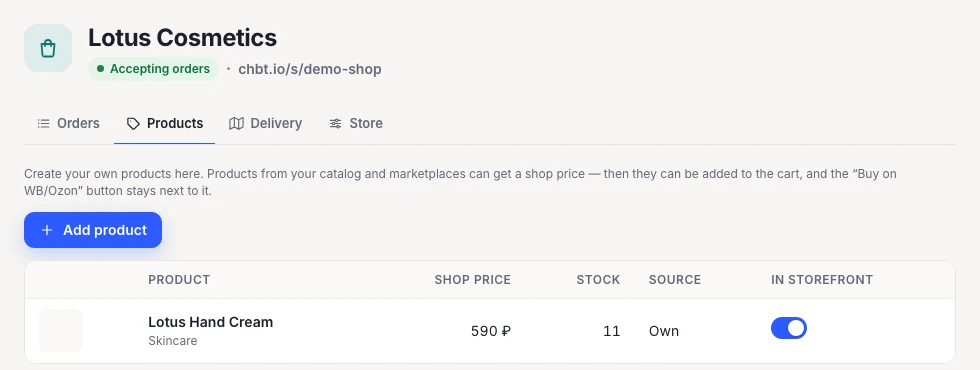
For this walkthrough, we’ll set up Lotus Cosmetics with a 590 ₽ hand cream and free pickup. We’ll use the same example to check the button, cart total and order record. The screenshots use demo data.
Connect the bot and add your first product
- Open Channels in your CHBT project and connect your MAX bot. Check that the bot replies in a private chat. If it is silent, get a simple welcome message working first so you can verify the channel separately.
- Open Shop → Products in the same project. Add your own product or set a storefront price for an item from the CHBT catalog. For your own item, enter a name, add a photo and save the price customers will pay. A catalog item’s shop price is separate from its marketplace price.
- Check the price, stock and storefront visibility switch. You only need one item that customers can add to the cart. In the example, the cream costs 590 ₽ and is visible and available for purchase.
The shop with a cart is available on the Basic plan and above. If an item comes in several variants, check the price and stock for each one you plan to sell. Customers see those values when choosing a size or volume.
Set up fulfillment and payment
Pickup or delivery
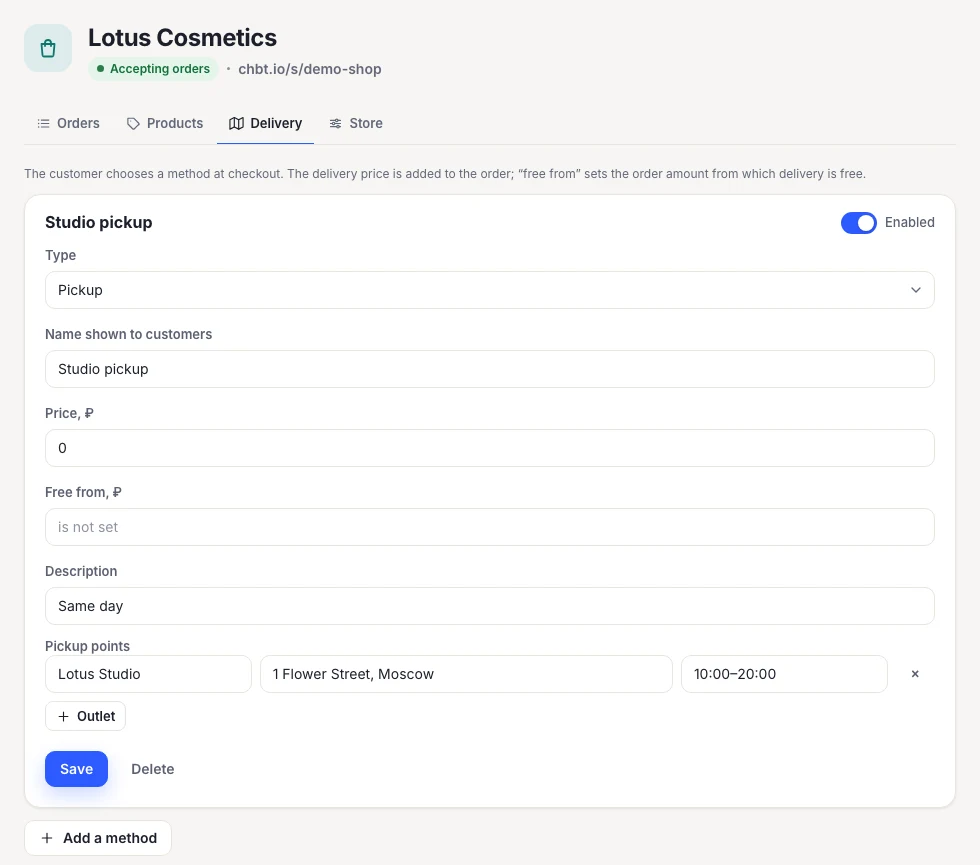
Open Shop → Delivery and add at least one active fulfillment option. For pickup, enter the location name, address and opening hours. For courier delivery, set the fee and check whether the customer needs to enter an address. The configured fee is added to the cart total. If you set a free delivery threshold, test carts below and above it.
Test the store without a payment
In the payment settings, enable payment on delivery and save your changes. With free pickup, the sample order should still total 590 ₽. If the shop has a minimum order amount, use a test cart that meets it.
When you need online payments
Shop checkout supports the seller’s YooKassa or CloudPayments account. Connect the account under Payments, select it in the shop settings and fill in the seller details. Make sure you selected the account for shop checkout. The Payment block in a flow and cart checkout are set up in different places. See CHBT shop help for the full setup.
Open the Shop overview and enable “Storefront accepts orders”. Open the storefront from there in your browser and check that you can add the product to the cart. This verifies the shop independently of the MAX settings.
Set the storefront URL in MAX
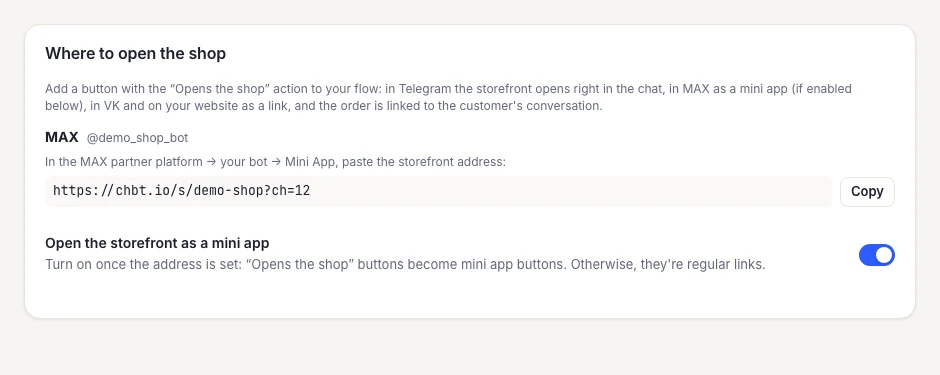
- In CHBT, open Shop → Where to open the shop. Find the MAX card for the connected bot and click Copy next to its storefront URL, for example
https://chbt.io/s/demo-shop?ch=12. Your project will have its own URL and channel ID. Keep the full address: the parameter after the question mark identifies the channel. - In MAX Partners, open Chatbots and find the bot with the same username. From “⋮” → Settings, paste the URL into the mini app URL field. Choose the launch button style and save. If the bot already has a mini app, saving a new URL replaces its configured link. See the MAX documentation for details.
- Return to the same MAX card in CHBT and enable “Open the storefront as a mini app”. The switch changes the format of new buttons in CHBT. The mini app URL is stored in the bot’s settings in MAX Partners.
If your project has several MAX bots, copy the URL from the card for the intended channel. Compare the usernames to avoid pasting one bot’s URL into another bot’s settings.
Add a shop button to the flow
Open the active flow that responds when the bot starts in MAX. In a Message block, add a button labelled “Open shop”. Choose the “Opens the shop” action. Leave its value empty to open the full catalog. Save the flow and send a fresh message with the button.
| Where to send the customer | Button value | Example |
|---|---|---|
| Entire storefront | Leave blank | A shop button in the welcome message. |
| One product | p/101, where 101 is the product ID in its Shop page URL | The customer asks about a specific cream and the bot opens that product. |
| Category | c/Skincare, where “Skincare” is the category name | The customer picks a section and the bot opens its products. |
Start with a button for the full storefront. Once it works, test a button for one product. Use “Opens the shop” if you want the mini app to open in MAX. Buttons added as regular links keep opening a link.
Place your first order on a phone
- Open the bot in MAX from a customer account and start the flow. Press the new button. Confirm that it opens in the intended mode and shows the right shop.
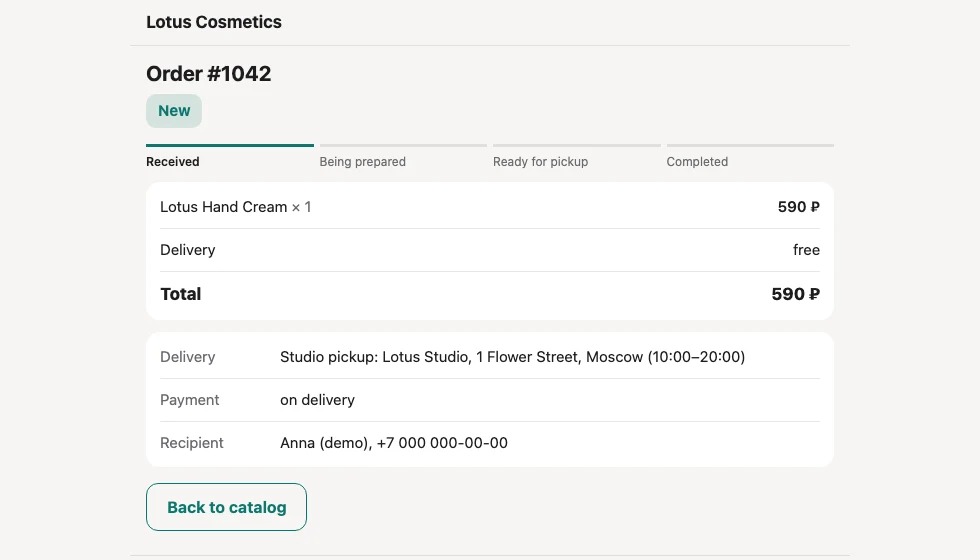
- Open the product, choose a variant if there is one and add one unit. The Lotus cart should contain one hand cream for 590 ₽.
- Enter your test contact details and choose free pickup. Check the location and opening hours. Select payment on delivery and place the order.
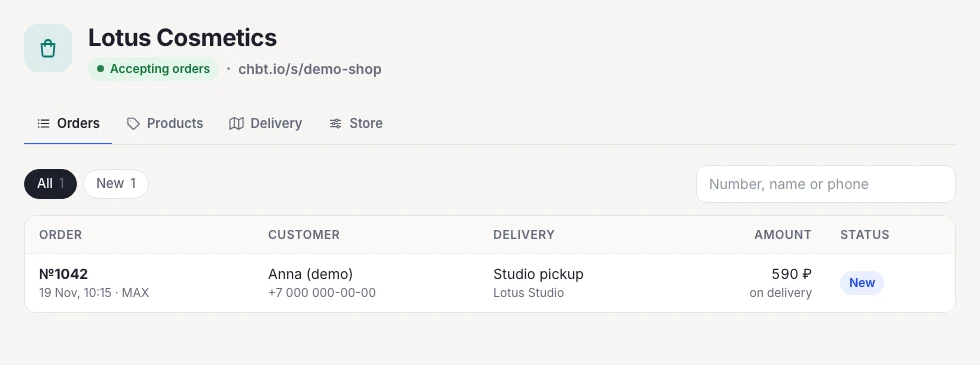
- Wait for the order page with a number. Note its number and total. In the example, that is #1042 for 590 ₽. When testing an online payment, wait for the payment provider’s confirmation. Reaching the checkout page alone does not confirm payment.
If the shop has several fulfillment options, repeat the check for the option you plan to promote first. For delivery, compare the total before and after adding the delivery fee.
Find the same order in the seller dashboard
In the project with the MAX bot, open Shop → Orders. Find the number shown to the customer. Check the MAX source, customer, fulfillment method, total and status in the list. Open the order and compare its items with the cart. If you enabled seller notifications, test their delivery too. You can always verify the order in the dashboard before configuring notifications.
For a test without a real payment, cancel the order from its detail page. If the item had limited stock, check that the unit is available again under Products. Before launch, share the bot link with a colleague and have them repeat the steps from their account. This checks the flow entry and checkout for a new customer.
Troubleshoot by what the customer sees
| What you see | What to check |
|---|---|
| The bot replies but there is no shop button | Open Shop and check whether the storefront accepts orders. CHBT hides shop buttons while the shop is closed. Verify that you started the right flow and received a new message after saving it. |
| The button opens a browser | Check the “Opens the shop” action and the mini app switch on the right MAX channel card. Restart the flow and press a fresh button. Messages already sent do not change when you update settings. |
| A different app or a blank page opens | Compare the full CHBT URL with the mini app URL in MAX Partners, including the part after the question mark. Open the regular storefront link from Shop to check the storefront on its own. |
| A product is missing or cannot be added to the cart | Check product visibility, the shop price and stock for the selected variant. For a product button, use the CHBT product page ID rather than the supplier’s SKU. |
| The cart opens but the order cannot be submitted | Check active fulfillment options, the minimum order and the payment method. For a first test, try free pickup and payment on delivery if configured. If the issue only happens with online payment, check the provider in the shop settings. |
| The customer saw an order page but the seller got no alert | Look for the order number under Shop → Orders. If the order is there, check the notification recipients and channel. If the order is missing, make sure you are looking at the project that owns that storefront. |
Before launch: a fresh button opens the intended storefront inside MAX, the cart total is correct, the customer sees an order number and the seller can find it in Orders. Then you can send customers to the bot from listings, communities or broadcasts.
FAQ
Can I open the storefront without setting up the mini app?
Yes. When the switch is off, the “Opens the shop” button opens a standard storefront link.
Do I need a separate catalog for MAX?
No. MAX opens the same CHBT shop, with the same products, pickup and delivery settings.
Shop in your botShop settingsMAX bot