
Home · Blog · How to import bot flows into CHBT from Salebot, BotHelp, Typebot and Botpress
How to import bot flows into CHBT from Salebot, BotHelp, Typebot and Botpress
Import a flow from Salebot, BotHelp, Typebot or Botpress into CHBT as an editable draft. Automatic conversion supports only part of each format: review the report, replace unsupported logic and test the flow before enabling it. Subscribers, conversations and payment connections are not imported.
What is imported and what you get
Importing a chatbot flow converts blocks and connections into a flow in the CHBT editor. Connecting the bot to a messenger and moving customer records are separate tasks. Provide an export file or public link; the result is a disabled flow in the selected project.
| Source | What to prepare | Supported scope |
|---|---|---|
| Salebot | JSON backup | Text, compatible buttons and transitions, exact keywords and simple answer collection. Calculator expressions and complex conditions need setup. |
| BotHelp | A public link with copying enabled | Basic messages, linked photos, URL and postback buttons. Global counters, schedules and other unsupported actions are flagged in the report. |
| Typebot | JSON with structure version 6.1 | Messages, single choice, text, email and number inputs, compatible variables, simple conditions and Jump transitions. |
| Botpress Cloud | BPZ with structure version 1.16 | One selected workflow: static text cards and unconditional transitions. Code, autonomous nodes and calls to other workflows need setup. |
6.1 and 1.16 identify file structure versions. They do not guarantee compatibility with every release of those services. The importer rejects other structures rather than guessing their meaning. Manychat, Puzzlebot and other sources are not included in this wizard.
Prepare an export or link
Salebot: JSON backup
Open the backup section in the original project and download the flow. CHBT accepts JSON. If the backup is a RAR archive, extract it on your computer and select the JSON file. Upload the original export, not a screenshot or a file with a renamed extension. See the Salebot backup instructions.
BotHelp: a public flow link
Open Share in BotHelp and enable copying. Paste a link in the form https://main.bothelp.io/f/…. Do not use a dashboard URL or a subscriber launch link. If the owner has not enabled copying, CHBT cannot import the flow. See BotHelp sharing instructions.
Typebot: JSON version 6.1
Export the flow as JSON using the Typebot editor. CHBT checks the structure version in the file; a different version is not automatically compatible. See Typebot export and import documentation.
Botpress Cloud: BPZ version 1.16
Export the bot as a BPZ archive. If it contains several workflows, CHBT lets you select one after the first check. Select it and check the migration again before creating the draft. CHBT does not combine all workflows into one flow. See Botpress import and export documentation.
Open the importer in the correct CHBT project
- Open the project where the flow should appear.
- Go to Flows and click Import a flow.
- For Salebot, Typebot or Botpress, choose a file. For BotHelp, select Public BotHelp link and paste the link.
- Click Check migration and wait for the result.
Project owners and administrators can create flows. The Operator role cannot import them. Check that you have selected the correct project: the preview belongs to that project and your account, not to every bot in your organization.
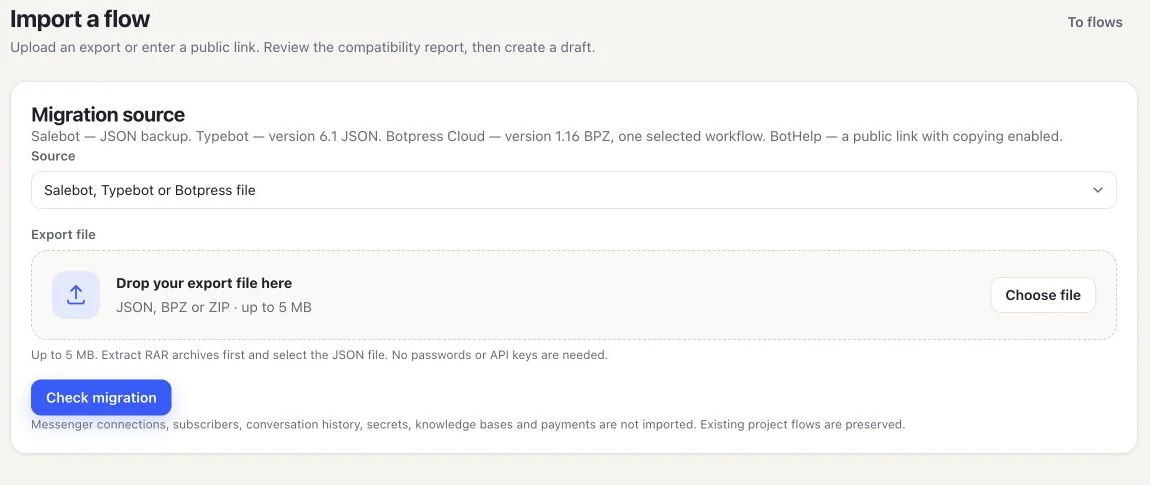
Files can be up to 5 MB. The resulting flow can contain up to 1,000 blocks and 5,000 connections. For larger exports, prepare a separate logical chain in the original service. Cutting arbitrary parts out of JSON can break connections or remove the entry point.
Read the report before creating a draft
CHBT shows the number of blocks, connections and triggers, plus the number of issues marked Needs setup. Expand the list: each issue refers to a particular block or transition. Download the report if you need to share it with the person who built the original flow.
- Review — for example, an image still uses an external address or text formatting needs checking. This is a warning for manual review.
- Needs setup — an action, condition or transition cannot be converted without changing its meaning. Enabling the flow and using its test chat remain unavailable until you replace the flagged blocks.
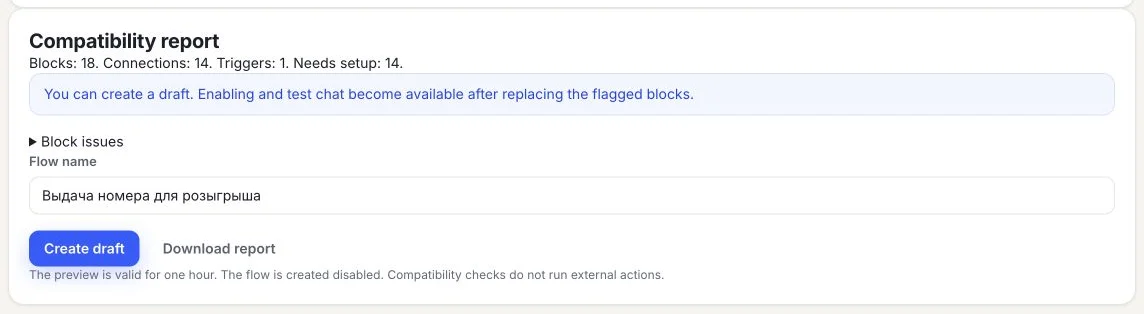
Zero blocking issues means the converter found no unsupported logic that it recognizes. You still need to check text, variable values, inputs and every conversation branch. Previews are valid for one hour. Run the check again if yours has expired.
Create a draft and replace unsupported actions
Check the name and click Create draft. The new flow is disabled, so it will not start responding to customers immediately after import. Existing project flows are preserved. Repeated clicks for the same preview do not create multiple copies.
A flagged block contains a reason and a description from the source. Renaming it or deleting its note does not make unsupported logic work. Replace the block with supported CHBT actions and reconnect the incoming and outgoing paths.
- Calculator or code: rebuild the required logic with supported blocks. CHBT does not execute source code from an export.
- Integration or payment: reconnect the service and configure a working action. See the payment setup guide.
- Timer, schedule or global counter: review how the original logic worked. Do not replace an exact schedule or persistent counter with an arbitrary delay.
- Missing transition: restore the intended destination. A button with no supported target will not continue the conversation.
- Botpress workflow: review the selected workflow and configure references to other workflows manually.
Check variables and input rules separately. Similar names do not guarantee matching types, lifetimes or substitution rules in the two services.
Test the conversation before switching channels
Once blocking issues are resolved, open the editor test chat and run through the flow. Start at the trigger, try every button and condition branch, and check collected answers and variables. Test chat does not confirm that an external payment, integration or message was delivered through a real channel.
Next, use a test bot or another controlled channel to verify messenger buttons, attachments, integrations and payment confirmations. You can keep the same Telegram bot address, but its main webhook must switch to the new service: two builders should not process the same stream simultaneously. This does not bring the original platform’s records into CHBT. Follow the Telegram connection guide.
The owner enables the imported flow separately. Before doing so, check for another project flow using the same trigger. Even a valid flow may not respond if an earlier flow handles the message first.
Use the bot testing checklist to review each branch.
What is not included in the flow import
- Subscribers and customer records from the original builder.
- Conversations, audience tags, stored results and previous payment statuses.
- Connected channels, bot tokens and payment provider settings.
- Knowledge bases, programs and integrations unsupported by the converter.
- Complex schedules, global counters and arbitrary code.
A linked image is not a backup of the file. It may stop loading if the original service blocks access. Review external address warnings and upload required assets to CHBT. Exports can contain authored text and links; check for private information or manually embedded keys before uploading.
If you are still choosing a service, read the Salebot comparison or BotHelp comparison. This guide covers obtaining and checking a flow after you have decided to migrate.
Flow import questions
Can the same file import my customer database?
No. The wizard converts the flow, not the audience. Keeping the same Telegram bot address does not import contacts, history or tags into CHBT.
Does CHBT need access to my account in the original builder?
No. Provide an export file or a public BotHelp link with copying enabled. No password or API key is required to import a flow.
Why can I create the draft but not enable it?
The draft has a blocking issue. Open the flagged block, replace unsupported logic and restore its connections, then test the flow in test chat.
Can I import Botpress Classic?
This release supports Botpress Cloud with the verified BPZ 1.16 structure. Other archives and versions are not automatically compatible.
Why is a file under 5 MB still rejected?
Check the format, version, file integrity and block count. The file size limit does not override flow limits. The error message indicates whether you need a fresh original export.
CHBT flow editorReconnect payment acceptanceCompare with SalebotCompare with BotHelp