
Home · Help · How to launch a Wildberries AI seller on Telegram, MAX and VK
How to launch a Wildberries AI seller on Telegram, MAX and VK
Choose the messengers where your shoppers contact you. The same catalogue and conversation flow serve all selected channels. Try the Niti Khotite?! shop’s live demo on Telegram below.
Contents
Choose a channel for your shop
Open Channels in your dashboard and connect one or more messengers.
- Telegram — connect your bot using its BotFather token.
- MAX — connect a bot from MAX for Business.
- VK — connect your community and enable community messages.
On Telegram, shoppers can receive a photo card if the product has an image. On MAX and VK, they receive the product details and a link in a text message.
Try the demo
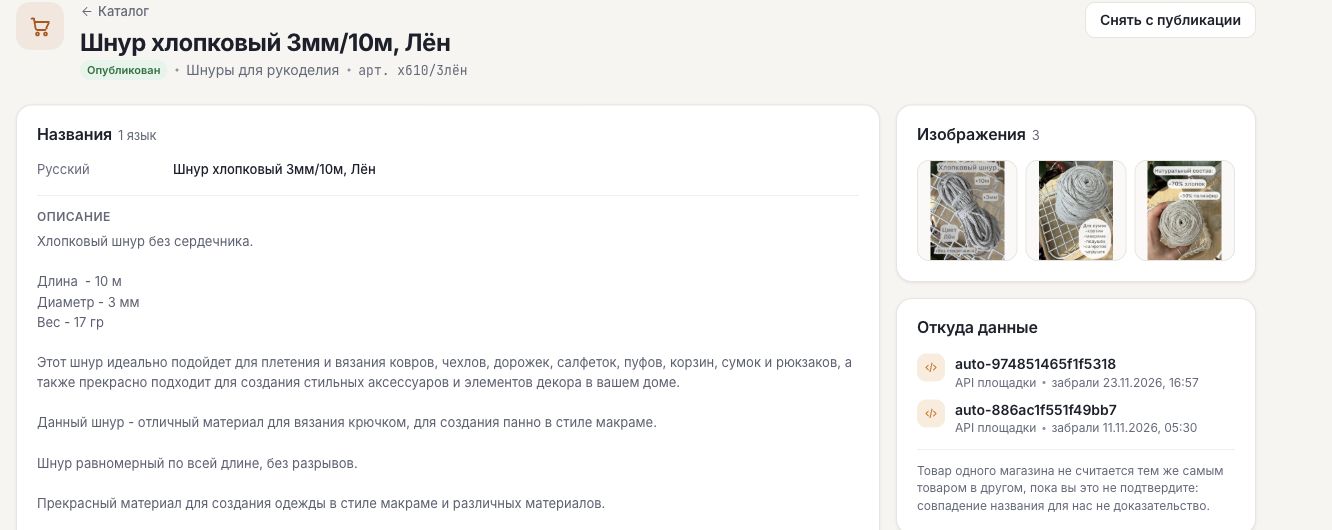
Open the Niti Khotite?! seller on Telegram. This bot serves a real store. Try asking how to get started weaving a plant hanger. Then ask for linen-coloured cotton cord, 3 mm thick and 10 m long. Open the suggested listing and check the material and dimensions. You can explore without placing an order. Contact seller hands the conversation to the store team.
Connect products
- In your project, open Marketplaces, choose Wildberries and connect a seller key with read access to the catalogue. Until the first successful import for your shop, catalogue access is shown as unverified. Required WB key permissions.
- For an independent shop, connect a YML feed by URL or import a CSV. Check the currency, variant name and customer-facing URL.
- Open Sales → Catalogue. Review your drafts and publish the products you want shoppers to see.
Configure the seller
In Sales → Set up sales, choose the country, language and channels. Open the draft in the editor. Introduce the kind of help your shop provides. A cord shop might ask what the shopper wants to weave and offer help with material, thickness and length. In the AI seller block, enter your consultation guidance and current delivery, exchange and return policies.
For a live flow, open the editor or build a separate draft and compare the answers. Saving that draft alone does not switch your shoppers over.
Test before going live
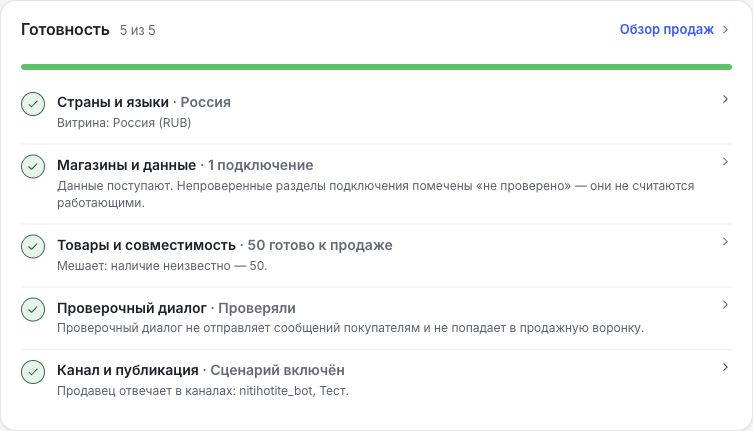
Open the selected draft’s test chat from the wizard. Ask to see the range and compare options. Try a specific item, an out-of-budget request and “I am just browsing”. Open the recommendation source in the dashboard and check the variant, price and availability. If stock is unknown, check the WB listing. Preview requests follow the model’s credit terms and are tracked separately from shopper clicks.
Select your channels in the wizard, check for overlapping triggers, then enable the seller. Send a product question in each selected channel and open the product link in the reply.
Reply to the shopper
Start a direct chat with your Telegram or MAX bot, or message your VK community. Use the contact seller action or send its label as a message. In your dashboard, open Conversations → Awaiting reply, select the conversation and send a message from the Reply tab. The shopper receives it in the same chat. Select Return to bot to resume the automated conversation.

Check the click
In Marketplaces, connect your Mobzio key and enable smart links. In a normal shopper conversation, open a recommended product. CHBT records the impression and click; Mobzio records the visit through its own link. The first recommendation can open WB directly while the smart link is being prepared. That direct visit has no Mobzio click.
In the Mobzio section, select a WB link created by this bot and a 7- or 30-day period. A matched order is a result of Mobzio attribution. Confirm completed purchases separately using sales data. For zero orders, check the link, dates and report access. Report retrieval errors appear separately. How to verify a smart link.
Join the pilot
We are looking for shops with live traffic for a two-month pilot, especially crafts, clothing with sizes and accessories requiring compatibility checks. Apply for the free pilot. Include your category, marketplace and the channel you want to test. Keep credentials and customer messages out of your application. The team will agree on terms and a start date with you before setup.